📱 How Do I Manage Booking and Check In on the Scoot App?
Step 1:
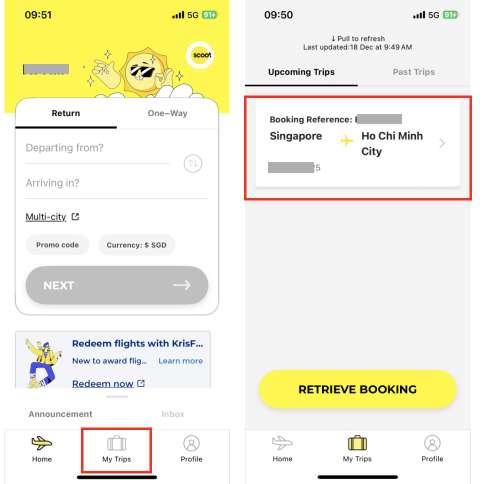
On the Scoot App main page, tap [My Trips] at the bottom of the page. Then, tap your existing booking.

If you booked with a travel agent such as trip.com, you might see a blank page with no upcoming trips showing up.
Fret not, you can still access Manage Booking and Check-in services on the Scoot App!
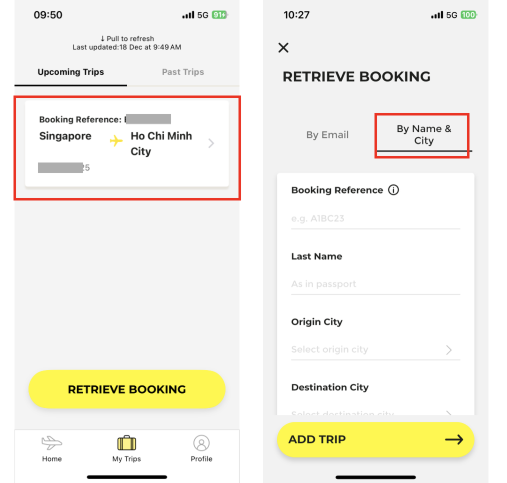
To do that, simply tap [Retrieve Booking], then tap [By Name & City] to input your PNR, name, and origin and destination cities.

Step 2:
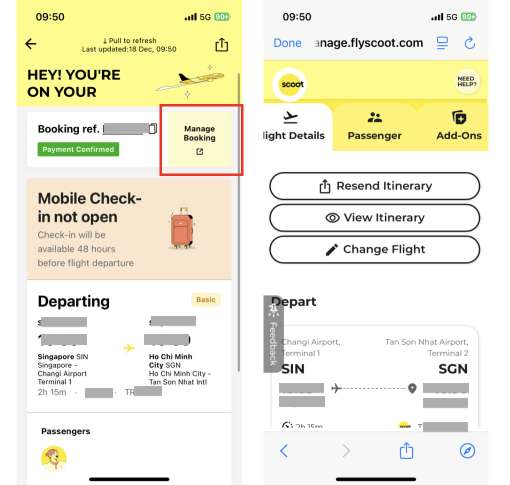
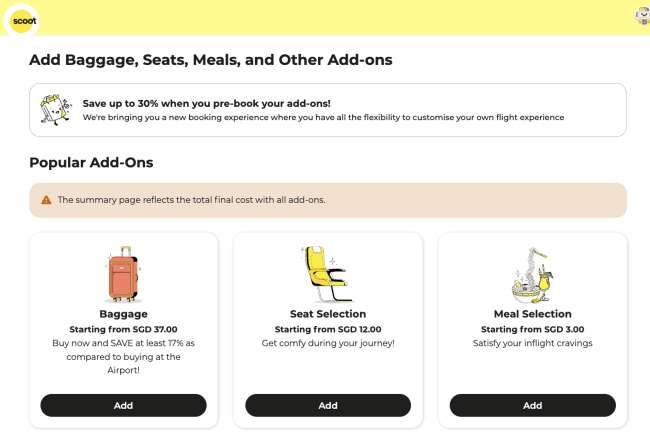
After you tap into your booking, you can tap [Manage Booking] to access different services, such as changing flight and adding on baggage allowance, seats, and meals.
You can also check in online for your upcoming flight on this page. Note that the option of online check-in is only available 48 hours before flight departure.

Flying with hand luggage? Check out our guide on Carry-on Baggage Restrictions to pack smart and avoid fees at check-in.
Unsure about cabin options? Check our Flight Classes Explained guide to pick the perfect seat for your budget and comfort.
💺What Can I Do at Manage Booking?

You can use Scoot’s Manage Booking on the app or website to tweak almost every part of your trip – from bags and seats to meals and flexibility add-ons – usually up to 4 hours before departure for most changes and purchases.
For Singapore flights, this is the fastest way to update your booking without calling the call centre or queueing at Changi.
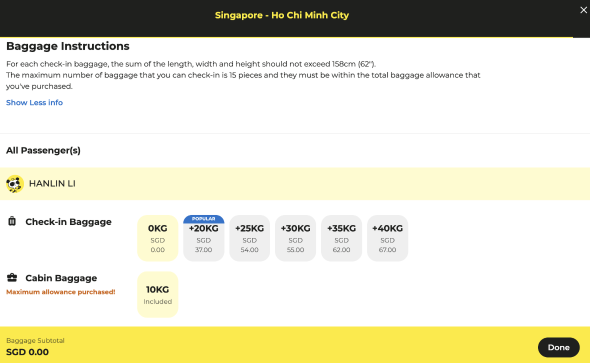
Add or Upgrade Baggage

- Add check-in baggage if your original fare came with none (e.g. Scoot “Basic”) or if you need more than what’s included in “Value” or “Flex”.
- Extra baggage can be purchased via Manage Booking up to a cut-off time before scheduled departure (typically at least a few hours), and is usually cheaper than paying at the airport counter.
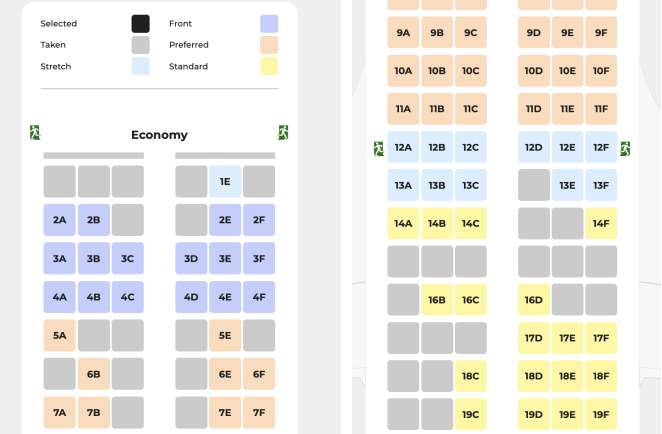
Choose or Change Seats

- Pick standard seats, extra legroom or front seats directly under the seat selection section in Manage Booking.
- Some bundles like “Value” and “Flex” include seat selection; others require a fee, so you can use Manage Booking to upgrade from an auto-assigned seat to something more comfortable before online check-in closes.
Pre-Order or Update Meals
- Browse Scoot Café’s hot meals and snacks, then pre-order via Manage Booking so your preferred meal is reserved on board – useful on longer routes from Singapore where popular items sell out.
- You can change your pre-ordered meal choice through Manage Booking or Scoot support channels up to their stated cut-off (usually a few hours before departure), after which changes are no longer allowed.

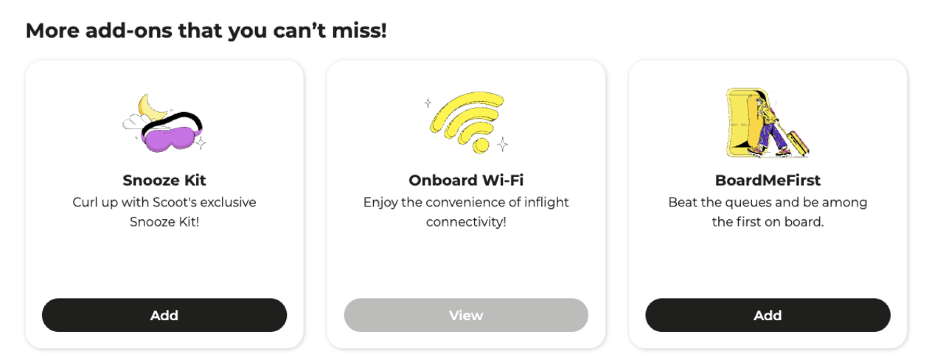
Buy a Snooze Kit
- Snooze kits are not included for standard Economy, but can be pre-purchased via Manage Booking if still within the add-on cut-off time (typically up to 2 hours before scheduled departure).
- On some fares like ScootPlus, comfort items may already be bundled; if so, you may not see the paid snooze kit option, or it will be clearly marked as included rather than something to buy separately.
Add Onboard Wi‑Fi
- Scoot’s inflight Wi‑Fi is available only on Boeing 787 Dreamliner aircraft, mainly used on longer routes from Singapore such as to Australia, the Middle East and Europe.
- You can pre-purchase a Wi‑Fi plan via Manage Booking up to 2 hours before departure, or buy it on board; ScootPlus passengers get a complimentary data allowance on eligible Wi‑Fi-equipped flights.
Add BoardMeFirst Priority
- BoardMeFirst gives priority check-in counters and priority boarding so you can skip the main queue at Changi and be among the first to board.
- For most Economy fares, BoardMeFirst appears as an optional add-on in Manage Booking that you can purchase before check-in; some customers (e.g.ScootPlus passengers) may receive BoardMeFirst automatically on eligible bookings, so the paid option may show as “included” or not appear.

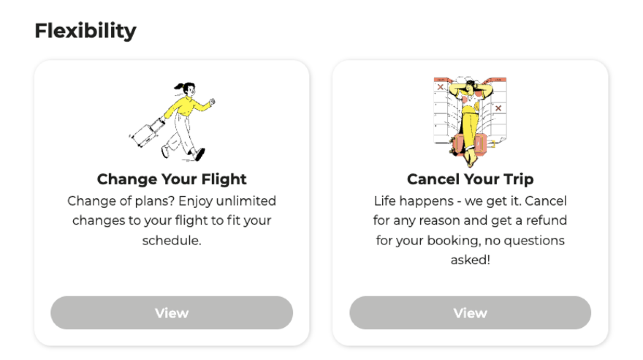
Add Flexibility: Change Your Flight
- If you bought the Change Your Flight flexibility add-on, Manage Booking lets you change your flight date or time as many times as you like, as late as 4 hours before departure, paying only any fare difference.
- This add-on does not let you change your route; for example, a Singapore–Sydney ticket must stay on the same routing even if you move to another Scoot flight on a different date.
When “Change Your Flight” Is Greyed Out
- On many basic or promo fares, “Change Your Flight (add‑on)” appears in the menu but is not selectable, since it is a special flexibility product you had to buy during or shortly after booking. In this case you can still change flights under the normal “Change flight” function, but standard change fees and any fare difference apply.
- The dedicated flexibility tile simply acts as a label showing that this extra option is not included on your current booking, which is why it looks grey and doesn’t open any new screen.
Add Flexibility: Cancel Your Trip
- With the Cancel Your Trip add-on, you can cancel your booking for any reason via Manage Booking up to 4 hours before departure (as long as you have not checked in) and convert it into credit for a future Scoot flight.
- The add-on must be purchased during booking or within 24 hours after booking, and is available on most routes from Singapore except flights to and from India, so always check eligibility before relying on it for flexibility.
When “Cancel Your Trip” Is Greyed Out
- “Cancel Your Trip” will usually appear as a grey, non-clickable option because most Scoot tickets do not come with this add‑on by default. It is only active if you added it during booking or within the allowed post‑booking window.
- If it is greyed out, you cannot trigger a flexible cancellation for credit via that button; any cancellation will instead follow normal fare rules, which typically mean no refund for standard low‑cost fares from Singapore.
🔥Up to S$20 off Flights for New Users
🎫 How Do I Find My Booking Number (PNR)?

- Email: Check booking confirmation email for a 6-character code (e.g., A12BC3).
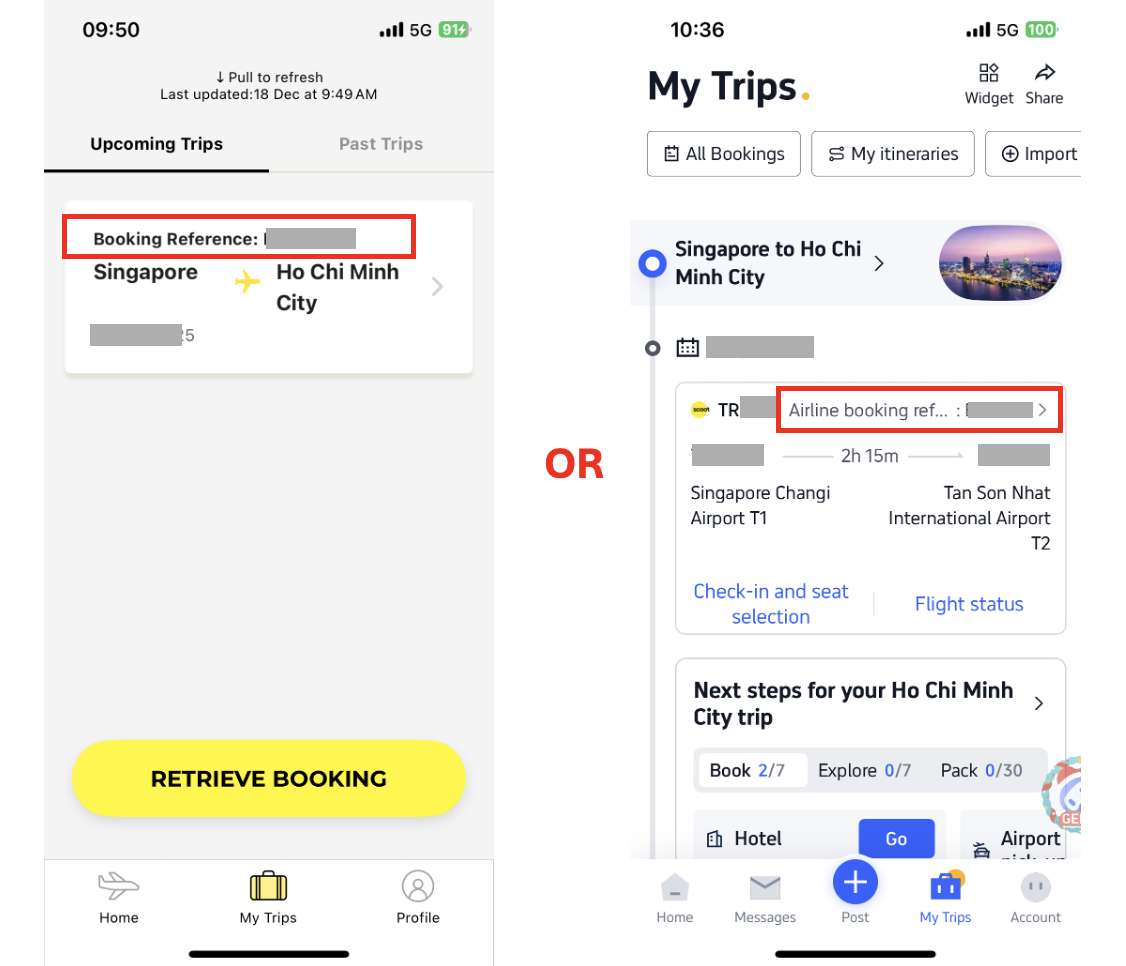
- Scoot App/Website: On the Scoot App main page, go to [My Trips] to view your booking and the “Booking Reference” number.
- Trip.com App: If you booked through Trip.com: on your Trip.com App main page, go to [My Trips] at the bottom row. Then, you can see “Airline booking reference number” on top of your booking.
🎁 Pro Tip: Get the Best Scoot Deals on Trip.com
Kick off your Scoot flight booking on Trip.com to enjoy competitive pricing, promotions, and exclusive rewards!
Monthly Campaign Promos

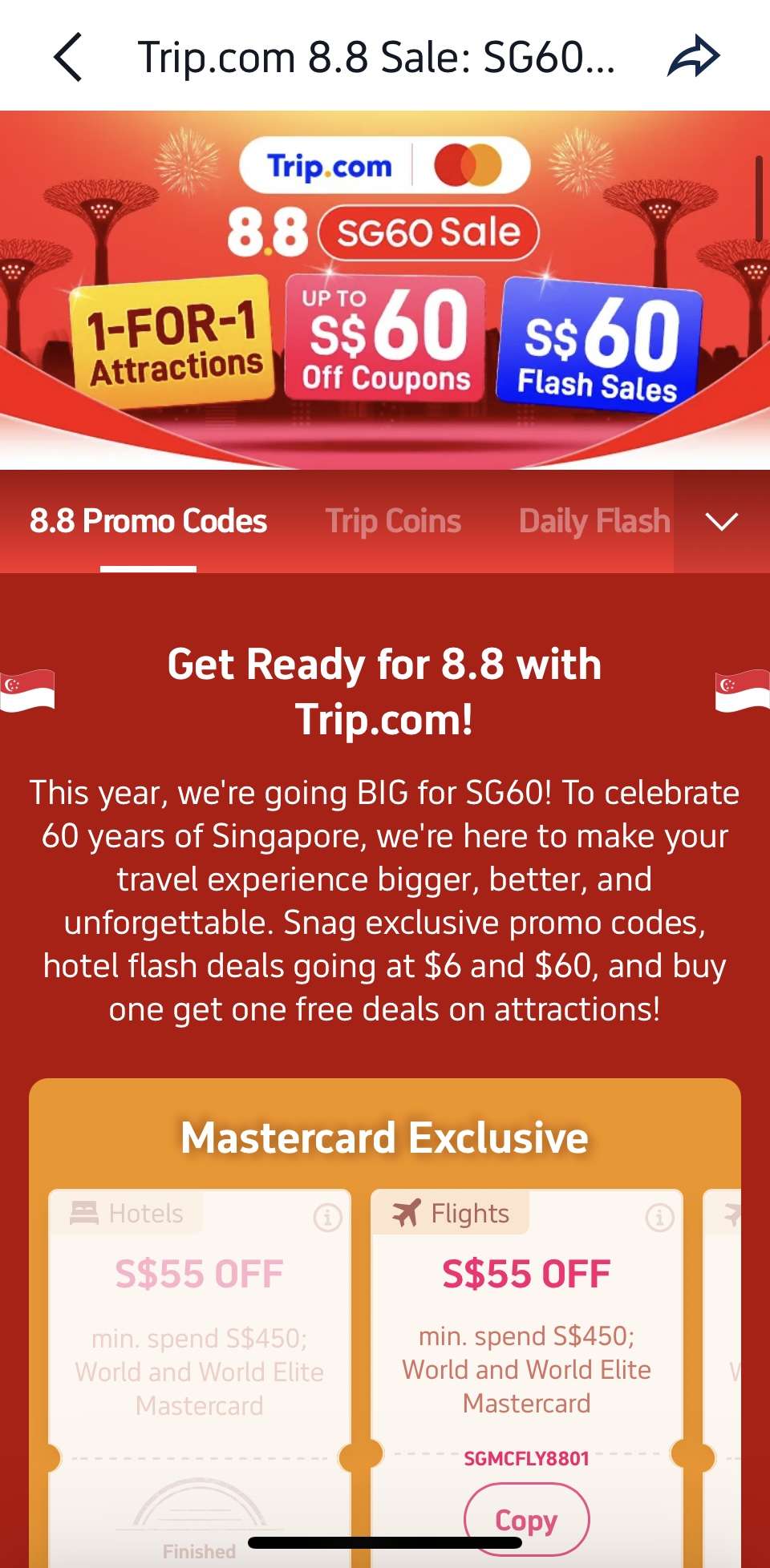
Trip.com shines with its Double Date campaigns running monthly from 1.1 all the way to 12.12, where you can get exclusive promo codes, airline promo fares, and bank card discounts (think DBS, UOB perks for locals) for massive savings that are not available if you book with the airline directly.
Double Up Earning Trip Coins + Airline Miles

Moreover, Trip.com bookings let you earn BOTH Trip Coins + airline miles by adding your frequent flyer details.
Every 100 Trip Coins = 1 USD (~1.3 SGD) and can offset payments at bookings with no minimum spend required.
Earn miles on every trip with Frequent Flyer Programmes—link your account before booking to rack up rewards fast.
Trip Member Rewards

More benefits will be unlocked as you progress through your Trip.com membership tiers! For example, Trip.com Platinum, Diamond, or Diamond+ members can access VIP lounges and start the journey relaxed and refreshed.
Stay Ahead - Join Our Exclusive Telegram Group!

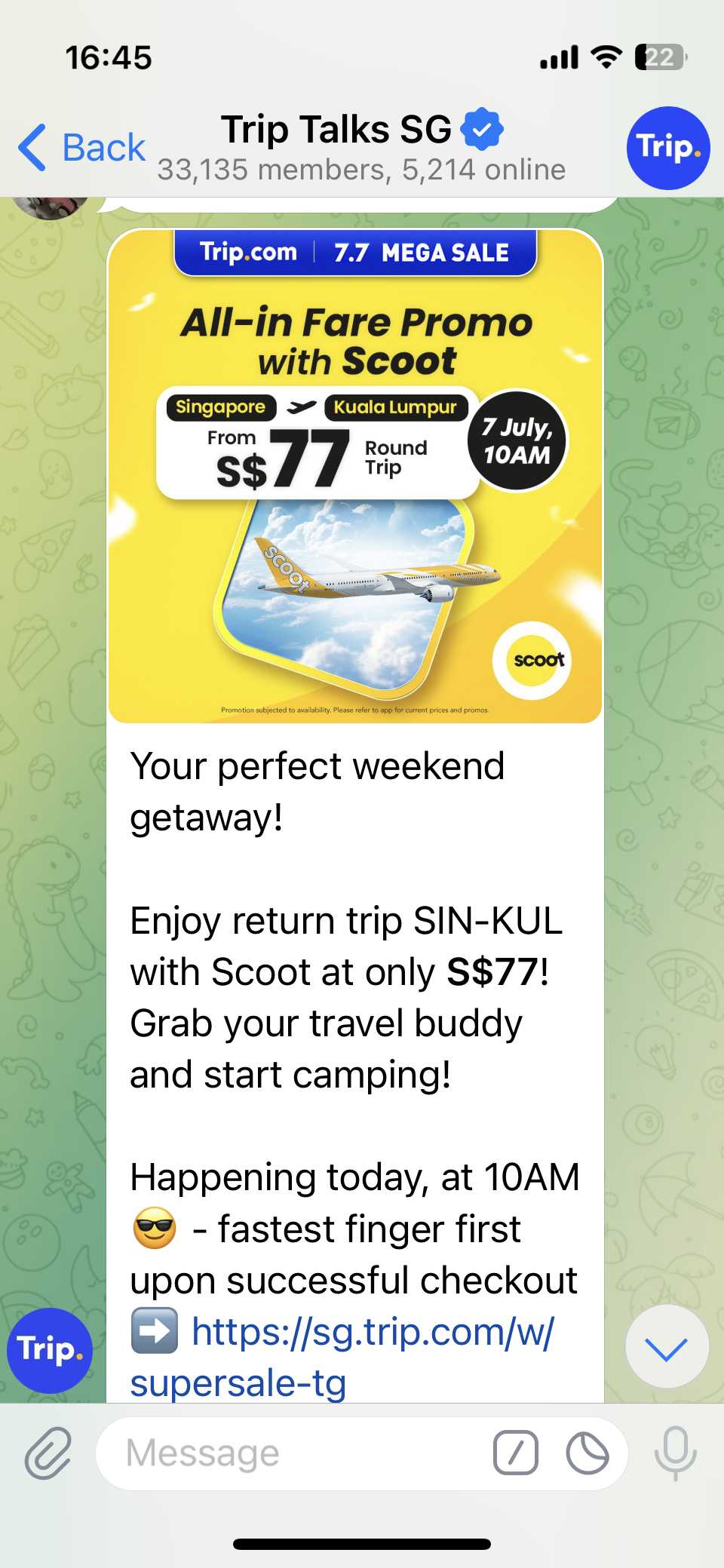
Don’t miss out on the hottest deals and flash sales! Join our Telegram group Trip Talks SG to get instant alerts, exclusive offers, and be first in line for must-grab promo codes. Stay connected, save more!
Download Trip.com App for App-only Discounts!
Download the Trip.com app now and unlock exclusive app-only discounts! Use the QR code to get instant savings on flights and hotels, available for both Android and Apple users.
Ready to fly? Don’t forget to check out our weekly updated deals and promo codes for regional and global destinations—grab the best offers before they’re gone!
Score bigger savings with How to Use Trip.com Promo Codes and stretch your travel budget further.
FAQ: Scoot App
How do I check in online via Scoot App?
Find your booking under [Upcoming Trips], tap in your booking for online check-in. Note that check-in will only be available 48 hours before flight departure.Can I add baggage after booking on Scoot App?
Yes, find your booking under [Upcoming Trips], tap in your booking and tap [Manage Booking] to add baggage.What if I booked Scoot on Trip.com – can I still use Scoot App?
Absolutely! Under [My Trips] on Scoot App, tap ‘Retrieve Booking’ by entering your PNR and details for online check-in and add-ons after securing the deal on Trip.com.