






























How to Select Seat in Flight on Trip.com

Author's Profile Picture
Select Your Seat with Trip.com

📒 How Seat Selection Works

💺 Free vs. Paid Seats: Basic economy fares often restrict free seat selection options to limited areas of the plane. Extra legroom, front-row, or exit-row seats may require an additional fee.

🛫 When to Select Seat: Seats can be chosen during your flight booking, after payment, or during online check-in (24–48 hours before departure).

🚫 Exceptions Apply: Some airlines (eg. low-cost carriers) only allow seat selection directly with the airline, so you will not see the seat selection option on Trip.com for some flights.

✈️ How to Select Seat in Flight During Flight Booking?

Step 1: Visit Flight Search Page

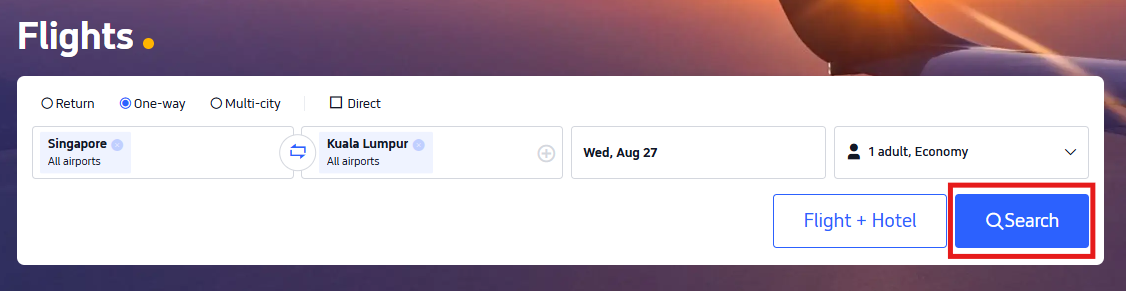
Visit flight search page on APP or desktop website. Enter the departure city, arrival city, travel dates, preferred class, and number of travellers. Then, click "Search" button.

How to search flight on trip.com

Step 2: Choose Your Preferred Flight

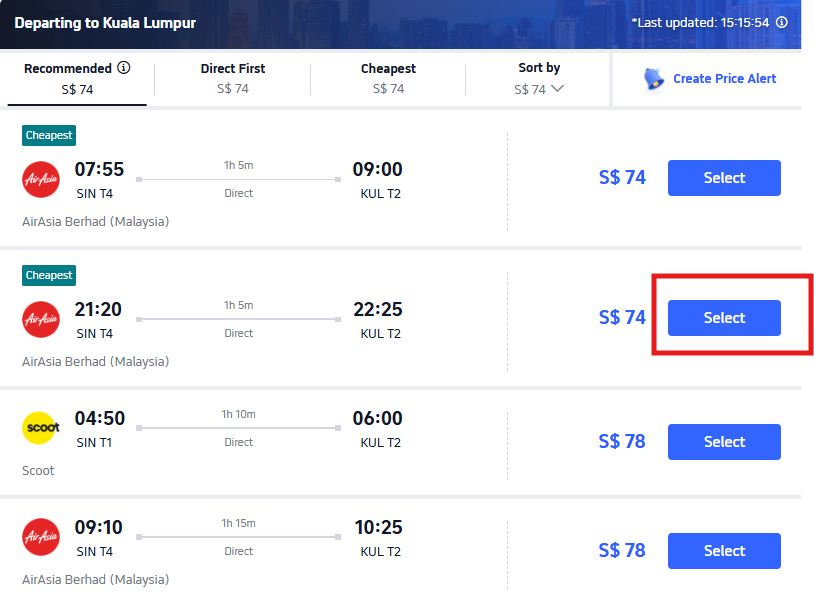
Click "Select" for your preferred departure flight, then proceed to do the same for your return flight(if you are flying roundtrip) on the next page.

Choose flight on trip.com

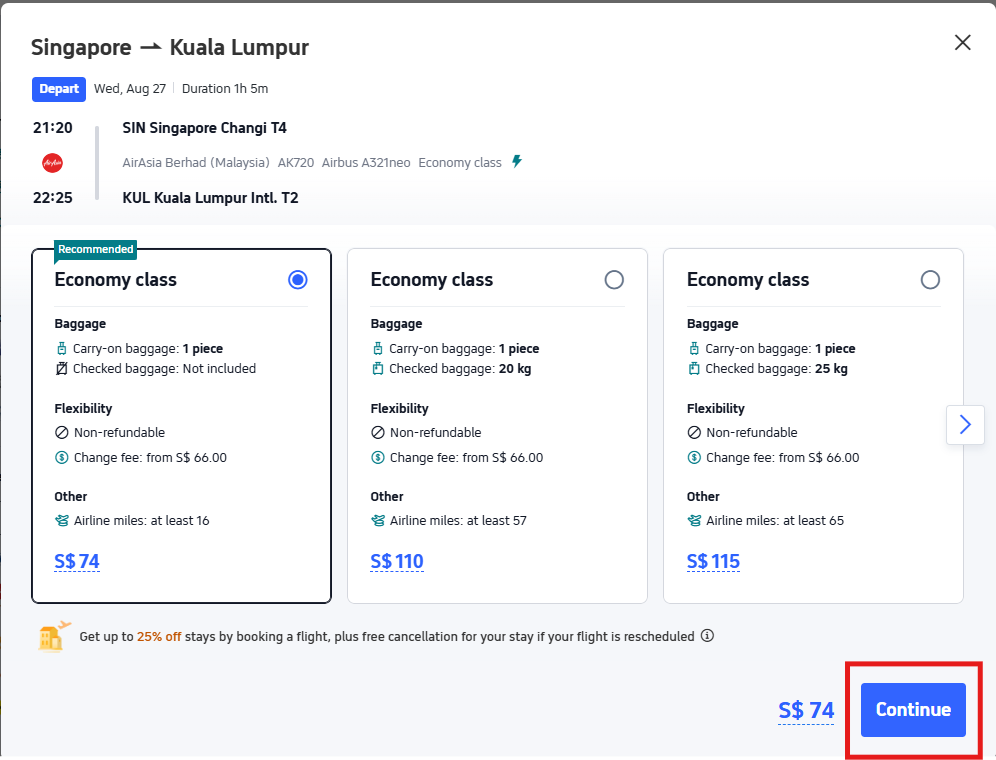
After you have selected your preferred flight(s), review the flight(s). Choose your preferred fare type and click "Continue" to proceed.

Tip: Want to know the differences between fare types? Read our comprehensive guide Flight Classes Explained to learn more about cabin class, fare type, and fare class!
Select your flight on trip.com

Step 3: Enter Passenger Info

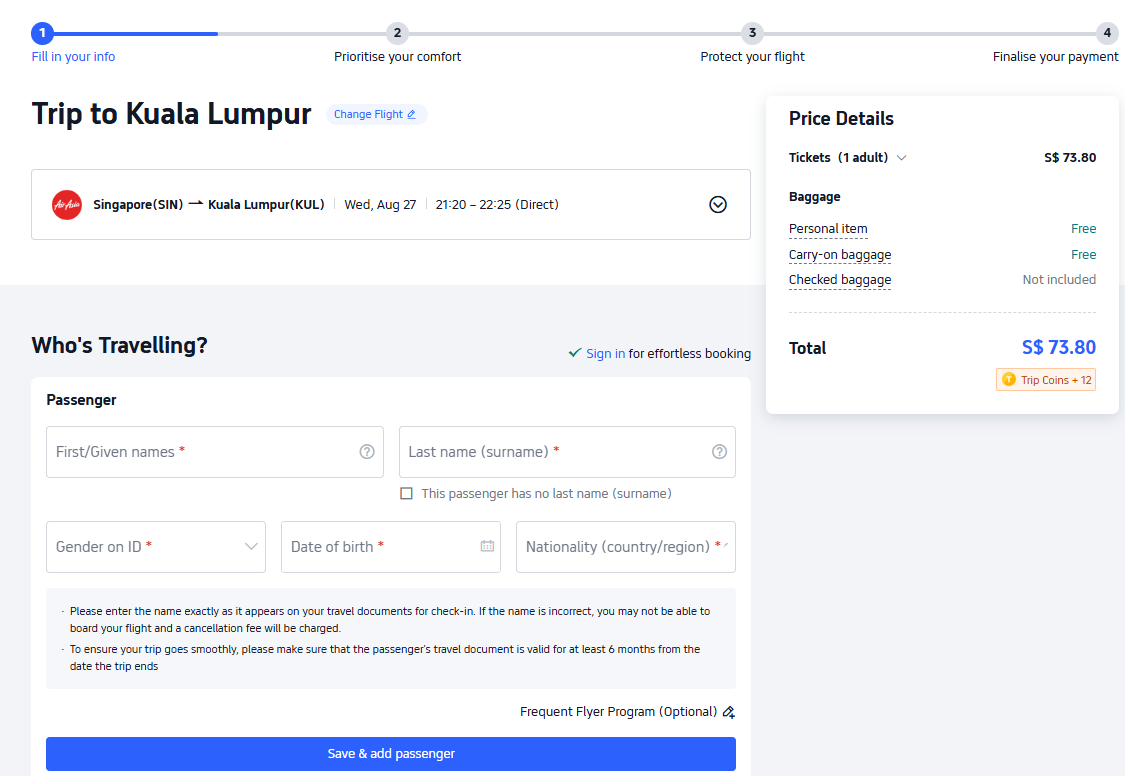
Fill in personal details such as name, gender, nationality, date of birth, and frequent flyer number. Tap "Next" to choose your Trip.com seat selection process.

Tip: Read our ultimate Frequent Flyer Programmes Guide to know more about frequent flyer programmes and where to find your frequent flyer number.
Fill in passenger details on trip.com

Step 4: Select Your Seat

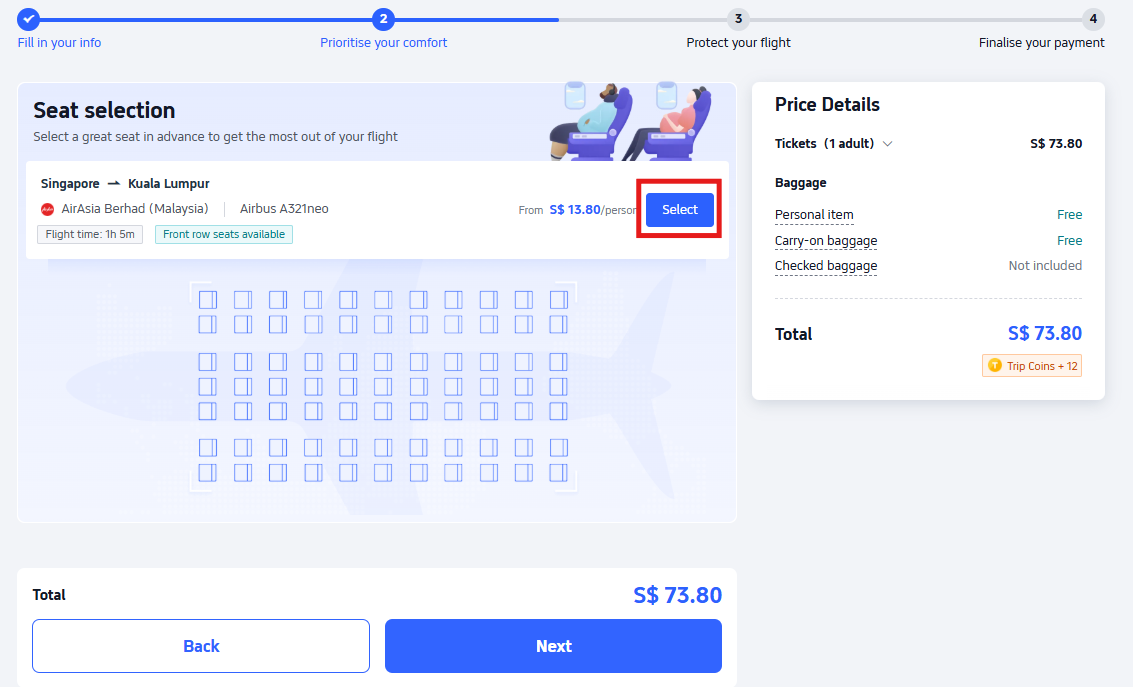
At the last page of the flight booking process, you will find the Seat Selection page. Click on "Select" and choose the seat you prefer for your flight(s).

Select seat on trip.com

Step 5: Add Travel Insurance for Protection (Optional)

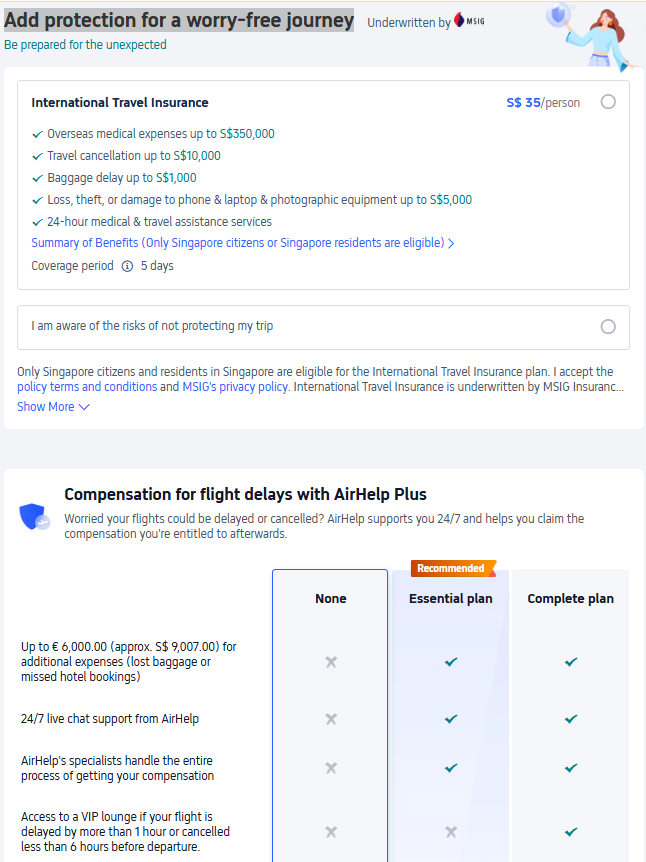
On the same page, there is an option to add travel insurance for a worry free journey.

Add on travel insurance on trip.com
Tip: Worried about flight delay? Read our Flight Delay Compensation Guide to know more about region-specific and airline-specific delay rules and what AirHelp is. Read our Travel Insurance Guide to know what travel insurance covers and does not cover!

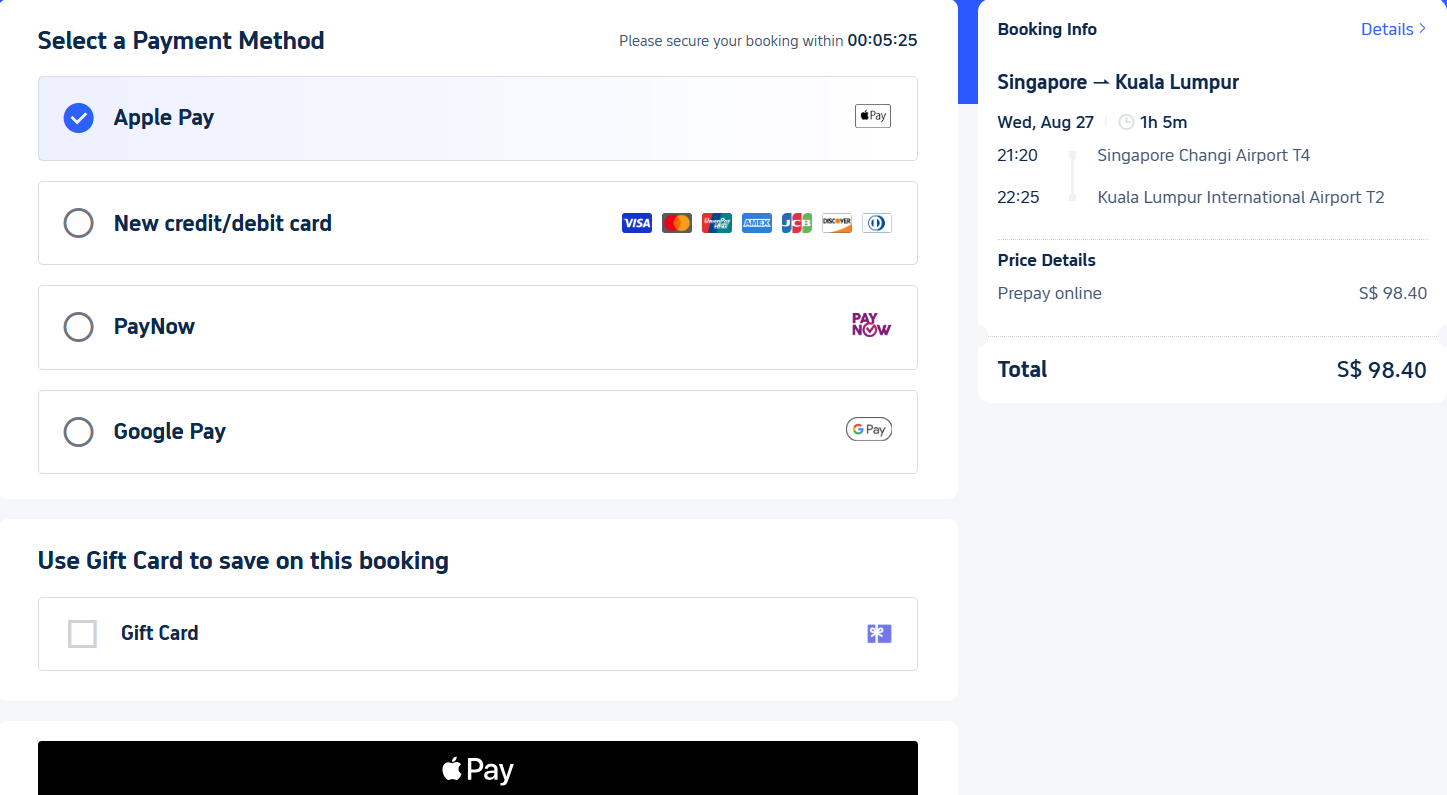
Step 6: Pay and Secure Your Booking

Select your preferred payment method and click on "Pay" button to complete your booking. You will receive your booking information via email.

Pay your ticket on trip.com

🛠️ Seat Selection: Errors and Possible Solutions

There could be several reasons why sometimes seat selection fails. Here are some possible solutions:

ProblemPossible Solution

Airline does not allow Trip.com seat assignment

Go to the airline’s official website and log in with your booking reference (PNR).

No seat map shown during booking

Use the Manage Booking section on the airline’s site or app to pick your seat.

Error message after selecting a seat

The seat may already be taken. Refresh or choose a different seat, or call the airline’s customer service.

Basic economy or budget fare restrictions

Upgrade to a higher fare class that includes free or paid seat selection.

Seats only open closer to departure

Wait until online check-in (24–48 hours before flight) to select from available seats.

Technical glitch on Trip.com

Try using the Trip.com app, clear cache, or contact Customer support for assistance.

💺 3 Steps to Cancel Your Selected Seat

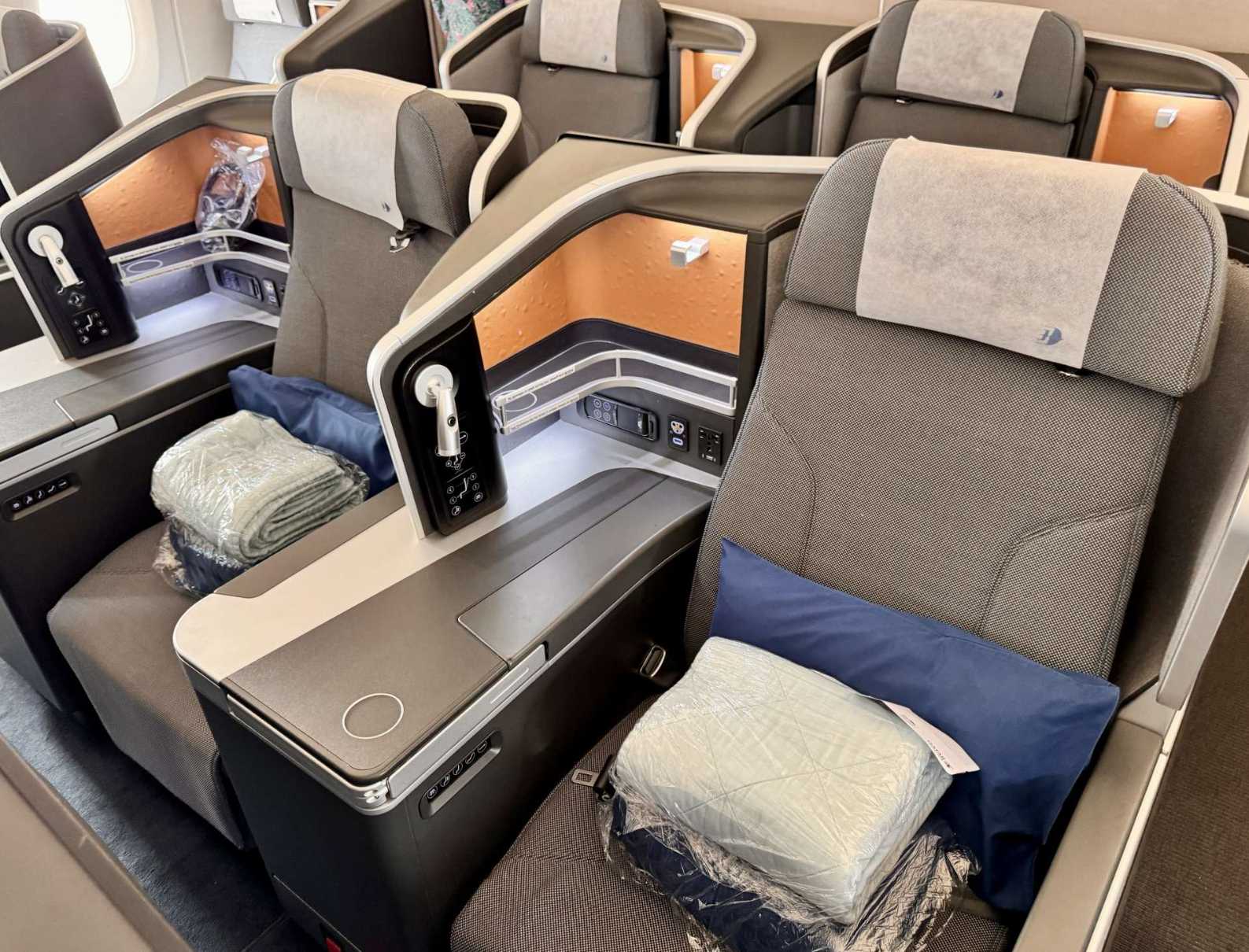
Business class seat on the plane

It's easy to cancel your flight seat selection with 3 steps:

Procedure

Details

Step 1

Log in to your Trip.com account and find the booking under "My Bookings" for which you want to cancel the seat selection.

Step 2

Select "Seat Selection" > "Change or Cancel Seat Selection" your selected seat.

Step 3

Select the seat you wish to cancel, confirm your selection and submit the request.

🌟 Tips for Smoother Seat Selection

  • 🪑 Book early for the best seat options and availability.
  • 💳 Be prepared to pay extra for exit rows or bulkhead seats.
  • 👥 Want to sit together? Select seats at the same time to avoid separation.
  • 📱 Use the airline’s app for last-minute changes or upgrades.

Level up your seat-picking and save while you’re at it—check our weekly updated promos and travel deals to score discounts on flights, seats, and add‑ons before you book.

FAQ: Seat Selection in Flight

  • What happens if I don’t select a seat on my Trip.com booking?

    You will be auto-assigned a seat at check‑in. You may be separated from companions and won’t be able to choose window/aisle preferences.
  • Does Trip.com seat families together automatically?

    Not guaranteed. Select seats together during booking or after booking via ‘Manage Booking’ at your account to ensure your family sits together.
  • Why am I being charged for a seat?

    Seat fees are set by airlines. The cost depends on your fare—basic/budget fare types often require payment for any advance seat choice, while most fares charge extra for premium spots like extra legroom, exit rows, and forward-zone seats.
Disclaimer: This article has been provided by an individual contributor or third party platform. If there is any discrepancy regarding the copyright, please contact us directly and we will delete the content immediately.
>
How to Select Seat in Flight on Trip.com