
How to Track Flight Status on Trip.com – Live Updates

Author's Profile Picture
How to Track Flight Status on Trip.com?

Planning a trip should be exciting, but staying on top of your flight details can become a challenge. Here at Trip.com, we intend to make it easy to track your flight status so you can travel stress-free, meaning you can keep an eye on departure times, delays, or gate changes with ease.

How to Track Flight Status Directly on Trip.com?

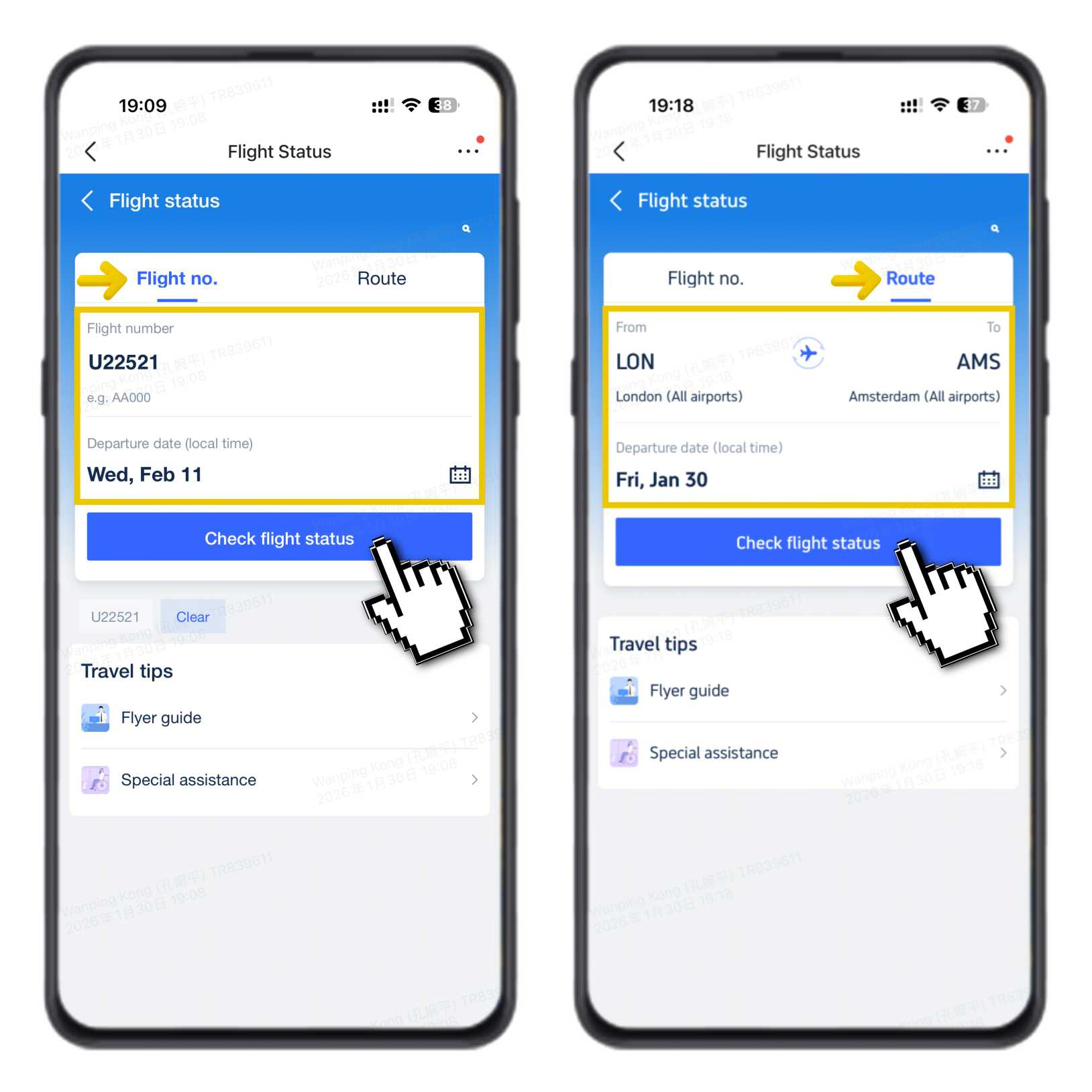
Step 1: How to Check Your Flight Status

Click to go straight to the Trip.com Flight Status page 👈

  1. Enter your flight number (e.g., U22521) or select your route (e.g., London to Amsterdam).
  2. Select the departure date (local time).
  3. Click "Check Flight Status".

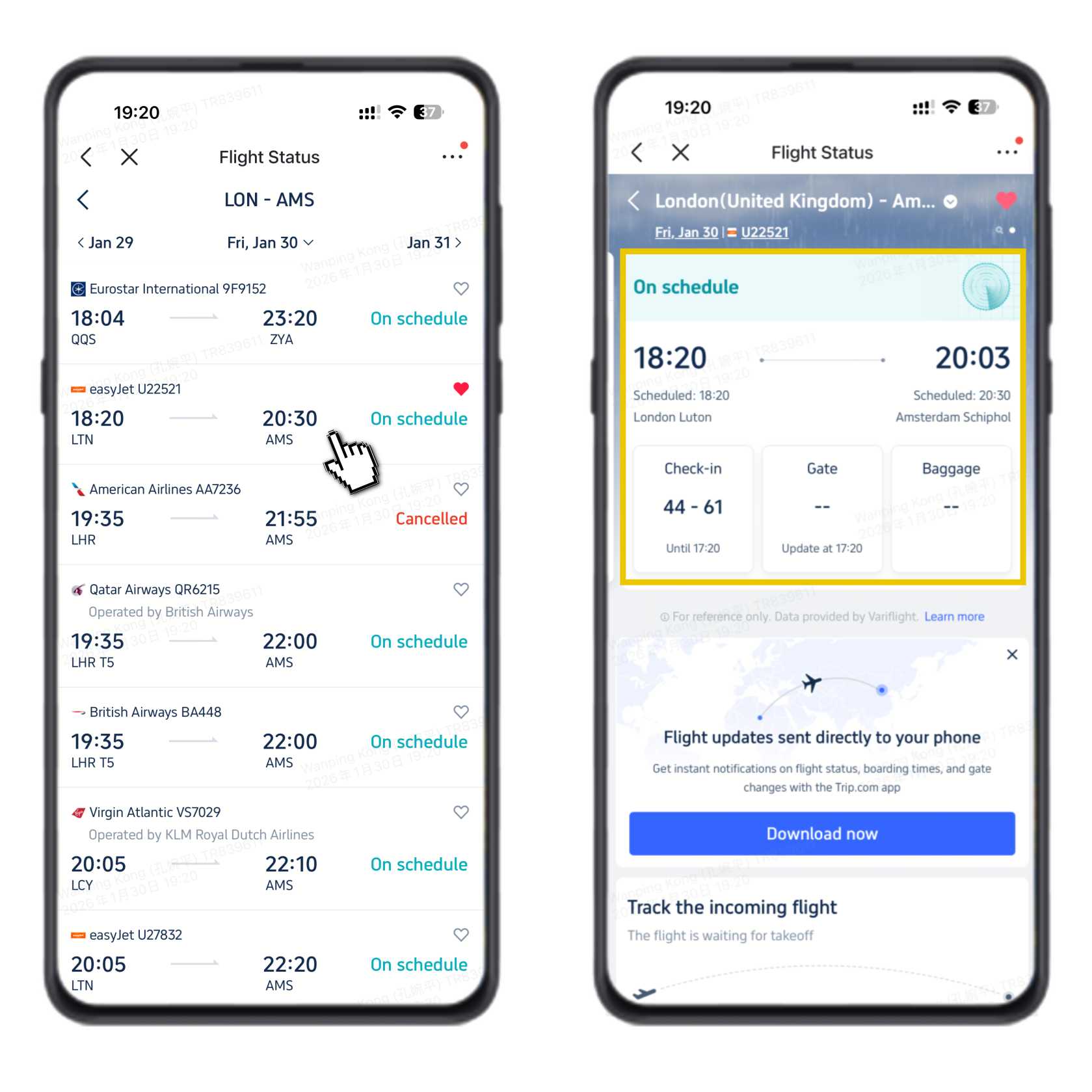
You will be taken directly to the main flight status screen, where you can see the latest updates for your flight.

How to Track Flight Status Directly on Trip.com

Step 2: What You'll See on the Main Page

On the main flight status page, you can quickly check the key details of your flight:

  • Real-time status: see if your flight is on schedule.
  • Departure & arrival times: your planned departure from the origin airport and the estimated arrival at the destination.
  • Practical airport info: check-in counter numbers, check-in closing time, and when the gate number will be shown.
What you will see on the Trip.com flight status page

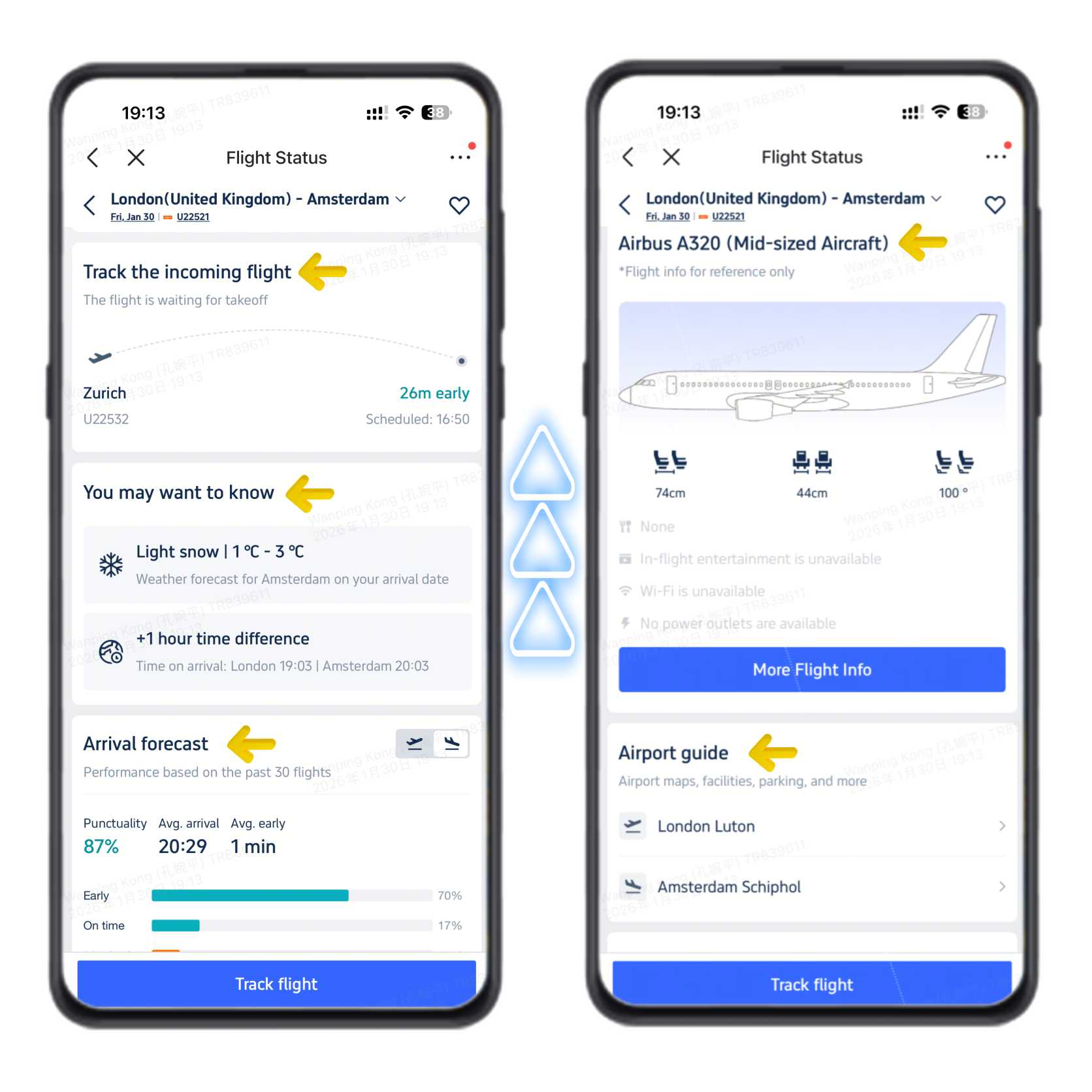
Step 3: Swipe Up for More Details

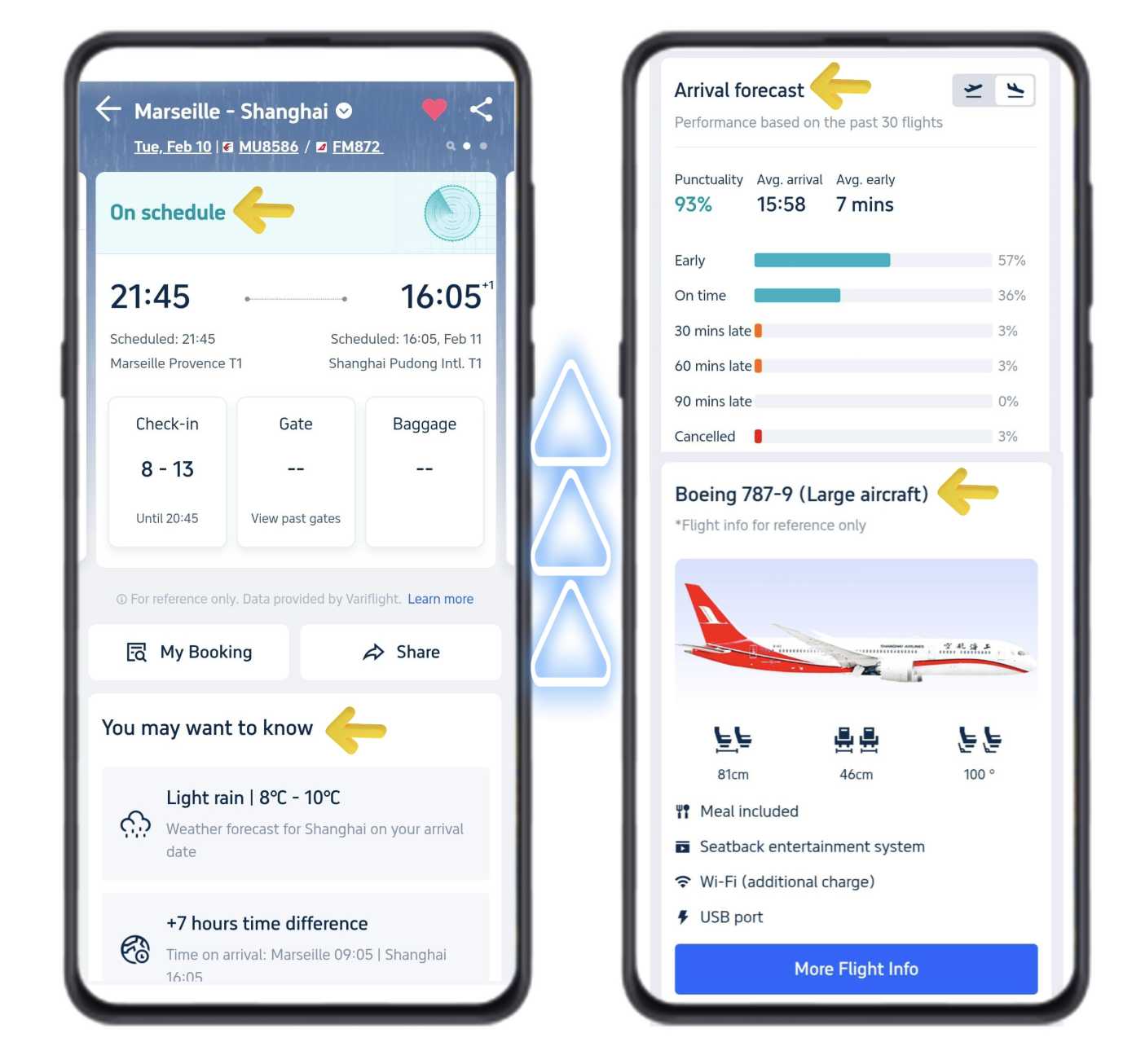
Swipe up to see more helpful information about your flight and arrival:

  • Incoming flight tracker: check where your aircraft is and if it's waiting for take-off.
  • Travel alerts: weather at your destination and the local time difference.
  • Arrival forecast: on-time rate based on recent flights, so you know what to expect.
  • Aircraft information: plane type and available services on board.
  • Airport guides: quick links to maps and useful info for both airports.
Swipe up to see more Trip.com flight status information

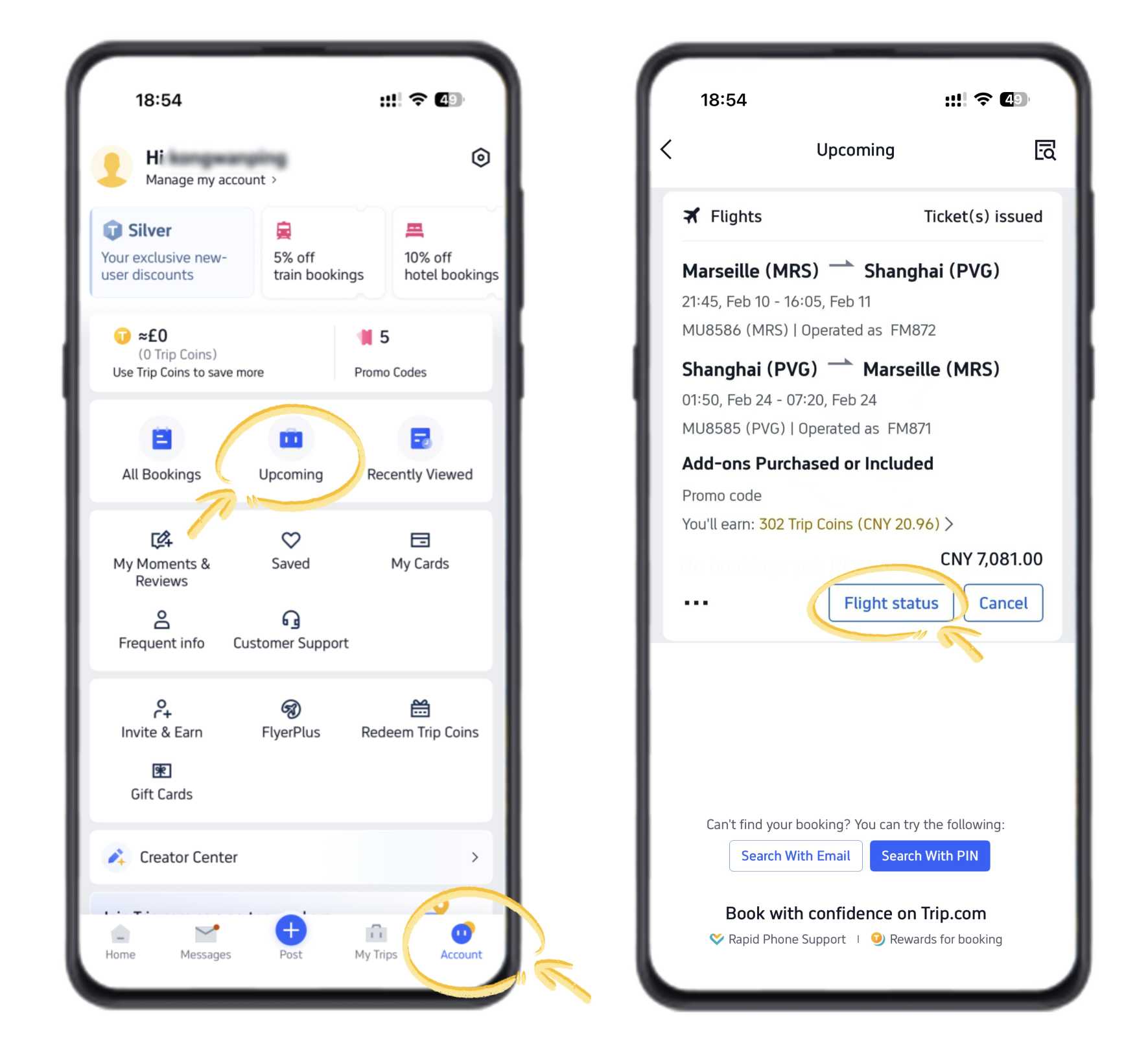
How to Track Flight Status in the Trip.com App?

  1. Download and open the Trip.com App on your phone. Sign in if needed.
  2. Tap “Account” in the bottom right corner of the home page.
  3. Tap “Upcoming”, then choose “Flight Status”.
How to Track Flight Status in the Trip.com App

Your flight information is the same as what you see when checking flight status directly on Trip.com, as explained above.

How to Track Flight Status in the Trip.com App

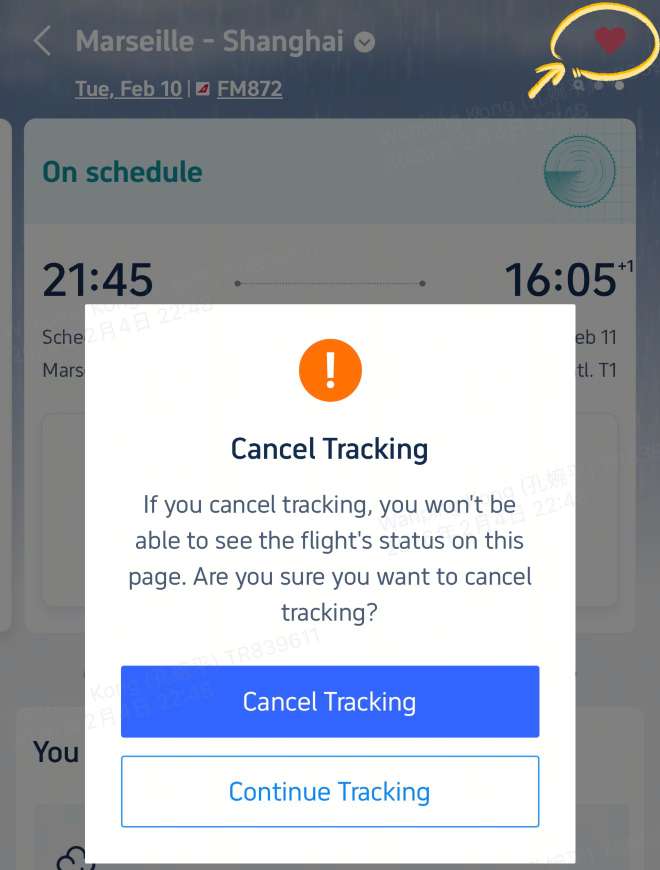
Bonus Tip: Enable Notifications

If you want to hear about any updates to your flight instantly, we recommend turning on notifications in the Trip.com app to receive instant updates about your flight. You'll get alerts for changes like gate assignments, delays, or cancellations, so you're always in the loop.

Enable Flight Status Notifications

📸 All images shown above are taken from the Trip.com App.

👉 Download the Trip.com App to track your flight easily and get real-time updates.
You can also enjoy better app-only deals and a new user package, with special offers on hotels, trains, attractions, and airport transfers.

🔥Exclusive Hotels Deal: Up to 10% OFF for New Users

Discover the world with trip.com! Book the perfect hotel anywhere in the world and get an unbeatable 10% discount if you're a first-time user! Download our app now and start planning your next trip with ease.

Just click this link and download the Trip.com App, after successfully registering as a member, use it when you place an order!
How to Track Flight Status on the Trip.com Website?

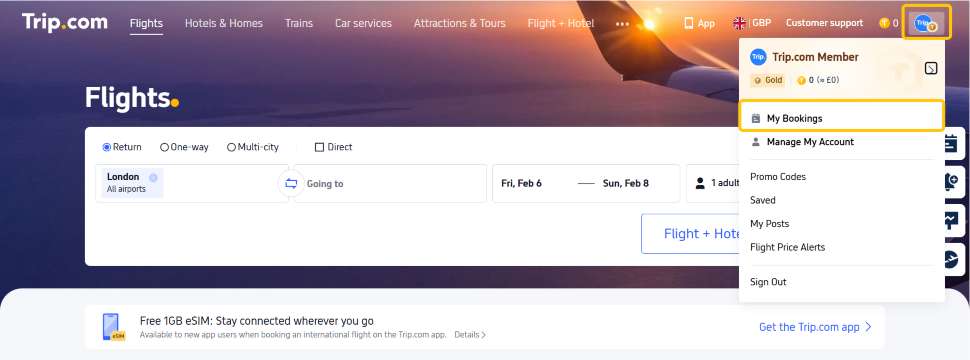
  1. Go to the Trip.com website and register or log in to your account.
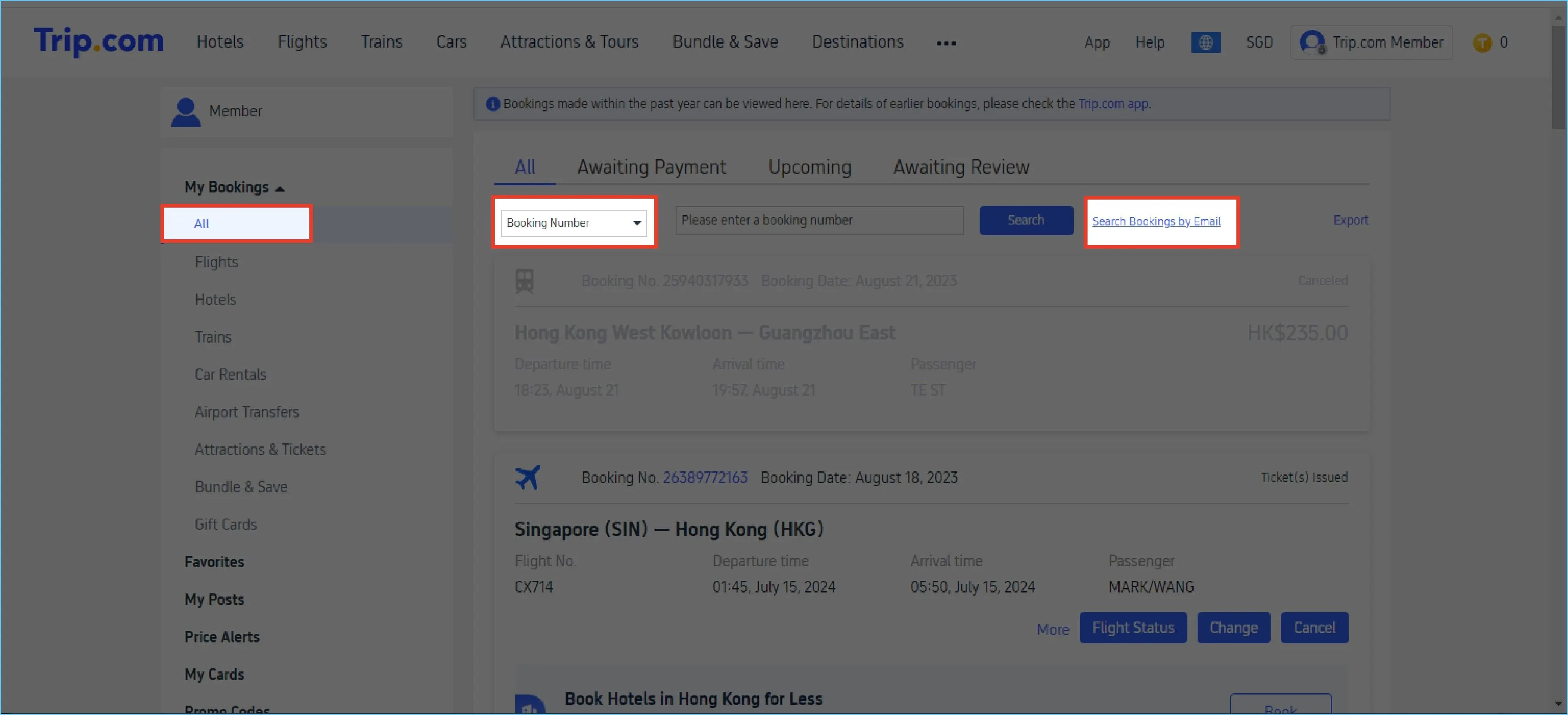
  2. Click “My Bookings” at the top right of Trip.com, and select the trip you want to view.
  3. Click the flight you want to track.
How to Track Flight Status on the Trip.com Website

The flight status shown on the website is the same as in the Trip.com App, including real-time status, times, and airport information.

Looking for your next trip? Find and book cheap flights on Trip.com.

Why Use Trip.com to Track Flights?

Trip.com Flight Tracking

Trip.com’s flight tracking feature ensures you have the latest information at your fingertips, so you can:

  • Avoid unexpected delays or last-minute gate changes that could disrupt your travel plans.
  • Plan your airport arrival time more efficiently, whether you’re checking in, dropping off luggage, or meeting someone.
  • Stay informed throughout your journey, from departure to arrival.
  • Receive quick updates on schedule changes, delays, or cancellations, so you can react faster.

Need Help?

If you have questions about your flight or encounter issues, our 24/7 customer service team is here to help. Visit our Help Center or contact us directly for support.

Trip.com Flight Guide

FAQs: How to Track Flight Status on Trip.com

  • Is Trip.com flight status real-time?

    Yes. Trip.com updates flight data in real time using airline and airport systems.
  • What information can I see in flight status?

    You can view departure and arrival times, delays, gate numbers, terminals, and cancellation updates.
  • Can I track international flights?

    Yes. Trip.com supports both domestic and international flight tracking.
  • Can I get notifications for flight changes?

    Yes. Log in and enable notifications to receive alerts for delays, gate changes, and cancellations.
  • Why is my flight status delayed or not showing?

    This may be due to airline system delays or last-minute changes. Refresh the page or check again in a few minutes.
Disclaimer: This article has been provided by an individual contributor or third party platform. If there is any discrepancy regarding the copyright, please contact us directly and we will delete the content immediately.
>>
How to Track Flight Status
aaaa