











Booking a hotel on Trip.com is convenient, but plans can change. Whether it’s a sudden schedule change, a missed flight, or simply a change of heart, it’s important to understand how the Trip.com hotel refund policy works. This guide explains cancellation rules, how to check your refund status, and how long it takes to get your money back.
Trip.com Hotel Refund Policy

Not all hotel bookings are treated the same. Your trip.com hotel refund depends on the hotel’s cancellation rules:
Free Cancellation Hotels
Hotels with this option allow you to cancel before a deadline for a full Trip.com refund. The cutoff time is usually shown in your booking.
Partially Refundable Hotels
You may still receive a partial refund, but the hotel may charge a cancellation fee depending on how close to the check-in date you cancel.
Non-Refundable Hotels
These bookings are the least flexible. The room cost is usually non-refundable, but you may still get back taxes or service charges.
How to Cancel a Hotel on Trip.com
Step 1: Log into your Trip.com account
Visit the Trip.com website or open the Trip.com app. Log in to your Trip.com account by using your email and password.
Step 2: Access your bookings
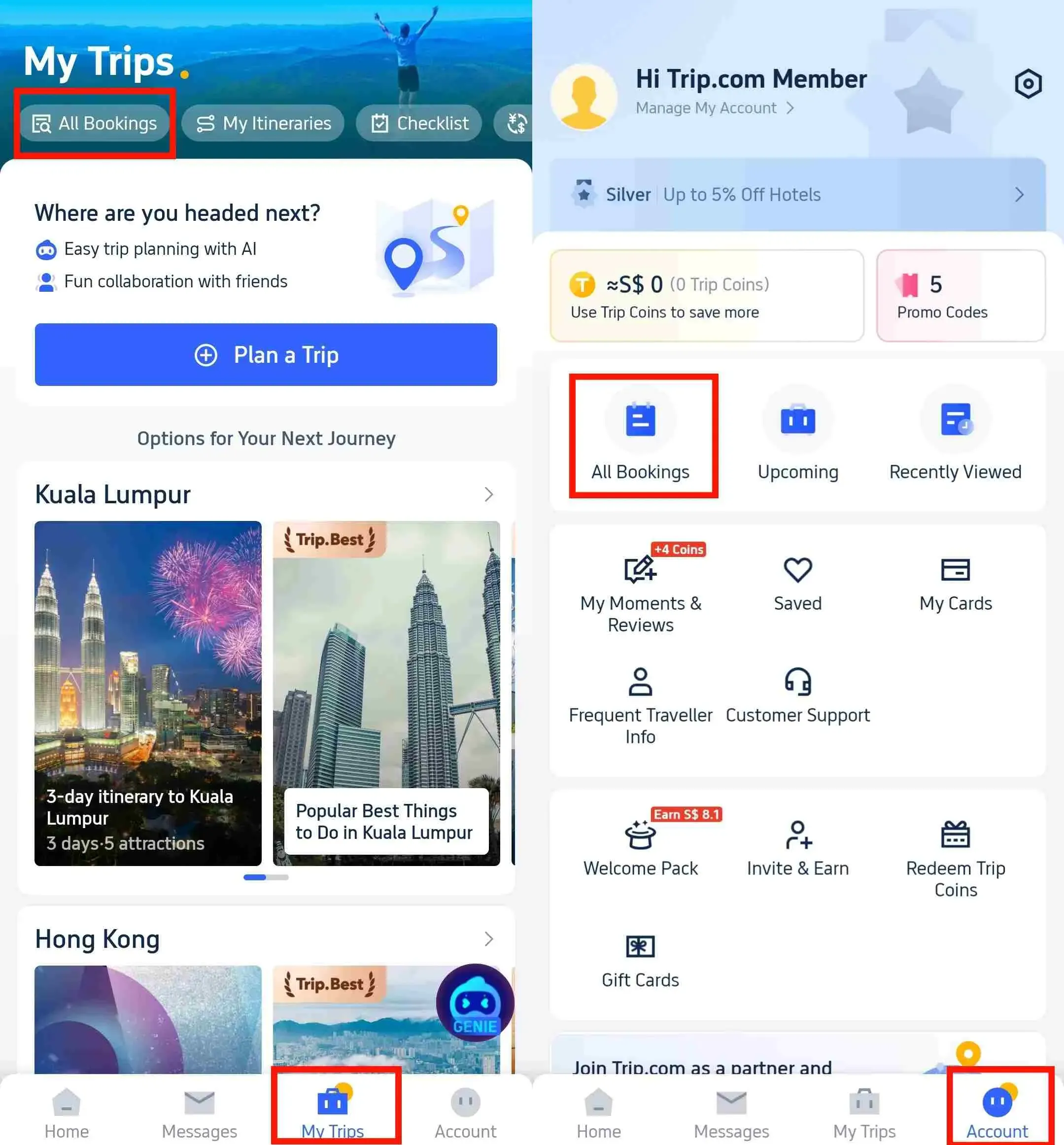
Once logged in, go to "My Trips-All Bookings" or “Account-All Bookings” on the Trip.com app. This can be found within the app’s main menu. Then locate the hotel booking you want to refund.

Step 3: Choose a hotel cancellation
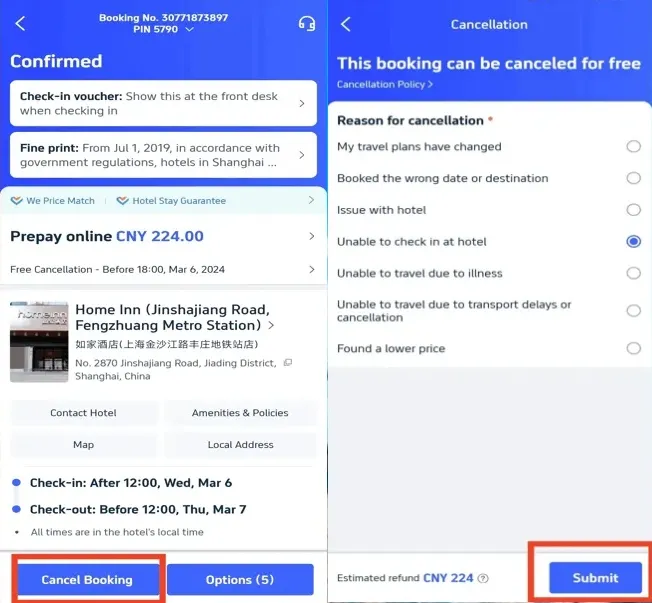
If your hotel booking is eligible for a refund, click "Cancel Booking". You will be prompted to choose the reason for your cancellation request. Then click “Submit” to confirm your hotel refund.

Step 4: Confirm your hotel cancellation and refund
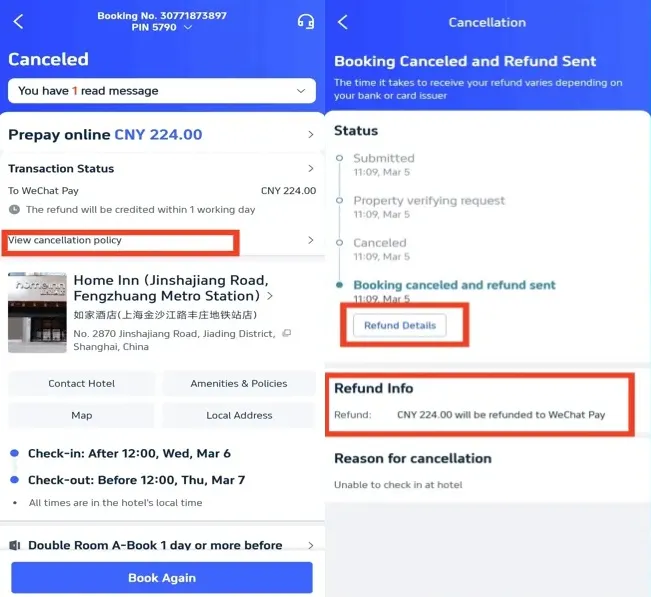
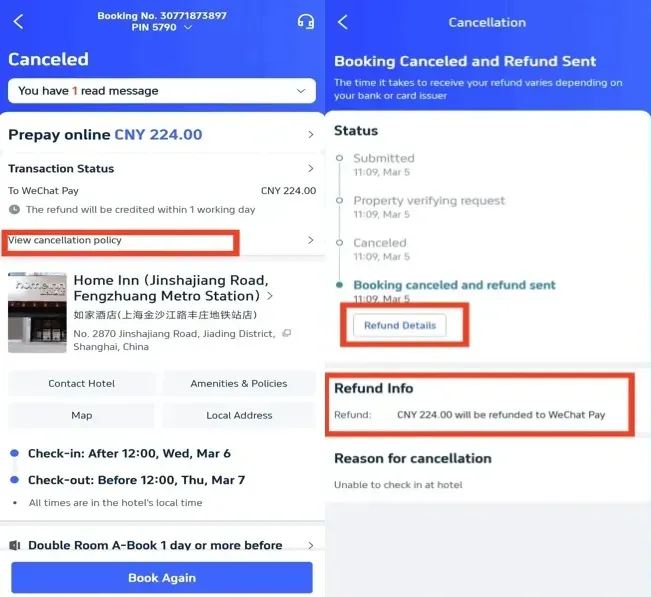
Once you have submitted your hotel cancellation request, you should receive a confirmation from Trip.com. You can click "View cancellation policy" to check the details of your refund.
Step 5: Monitor your hotel refund status
You can check the status of your refund by clicking "Refund Details on Trip.com app. The refund info can also be checked here. If there are any delays or issues, contact Trip.com customer service for assistance.

How to Check Trip.com Refund Status

After canceling, you can check your Trip.com refund status:

- Log in and open My Bookings.
- Select your canceled hotel reservation.
- Trip.com will display the current refund stage: Processing, Refunded, or Completed.
- You’ll also get email updates when your refund is issued.
How Long Does a Trip.com Hotel Refund Take?

The Trip.com refund processing time depends on your payment method:
- Credit/Debit Cards – 7–15 business days
- PayPal / E-wallets – 3–7 business days
- Bank Transfer – Up to 30 days
Trip.com Hotel Cancellation Fees
Trip.com does not usually charge extra, but hotels may apply penalties. Trip.com hotel cancellation fees depend on:
- The timing of your cancellation (closer to check-in = higher fees).
- The room type (promo rates often non-refundable).
- Seasonal rules (peak holiday bookings may be stricter).
Note on Trip.com Hotel Refund

Getting a Trip.com hotel refund is simple if you know your hotel’s cancellation policy. Always choose hotels with free cancellation for flexibility, and check your refund status in the app after canceling. With the right steps, you’ll avoid unnecessary cancellation fees and get your money back faster.
How to Get Trip.com Hotel Refund
How long does a Trip.com hotel refund take?
Refunds usually take 7–15 business days for credit or debit cards, 3–7 business days for PayPal and e-wallets, and up to 30 days for bank transfers. Actual processing depends on both the hotel and your payment provider.What should I do if my Trip.com refund is delayed?
If your refund takes longer than the expected time, contact Trip.com customer service via live chat, the 24/7 hotline, or email. They can confirm your refund status with the hotel or payment provider.How do I know if my Trip.com hotel booking is refundable?
Check the booking confirmation under Cancellation Policy. Hotels with Free Cancellation will show the last date and time you can cancel for a full refund.