Trip.com Baggage Allowance Guide: Cabin, Checked & Extra Fees Explained

By Trip.com
August 23, 2026

Understanding baggage allowance is essential before flying, especially to avoid extra fees at the airport.
When booking flights through Trip.com, baggage rules depend on the airline, ticket type, and route, so knowing how to check your allowance in advance can save you time, money, and stress.


What Is Baggage Allowance on Trip.com?
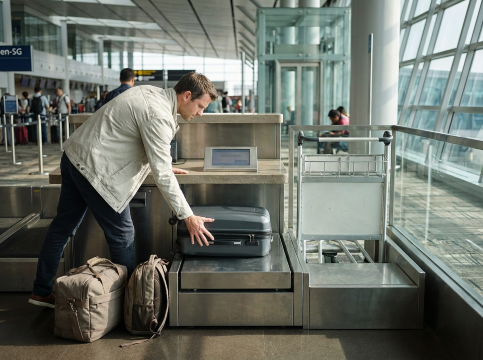
Trip.com does not set baggage rules itself.
Instead, it displays the official baggage allowance provided by the airline you book with.
This includes:
Baggage Type | Description |
|---|---|
Cabin (Carry-On) Baggage | Items you can bring into the aircraft cabin, usually with strict size and weight limits. |
Checked Baggage | Luggage checked in at the airport; allowance varies by airline, route, and ticket type. |
Weight and Size Limits | Maximum weight and dimensions allowed for both cabin and checked baggage. |
Special Baggage Policies | Rules for items like sports equipment, musical instruments, and other oversized or special items. |
How To Check or Add Trip.com Baggage Allowance?
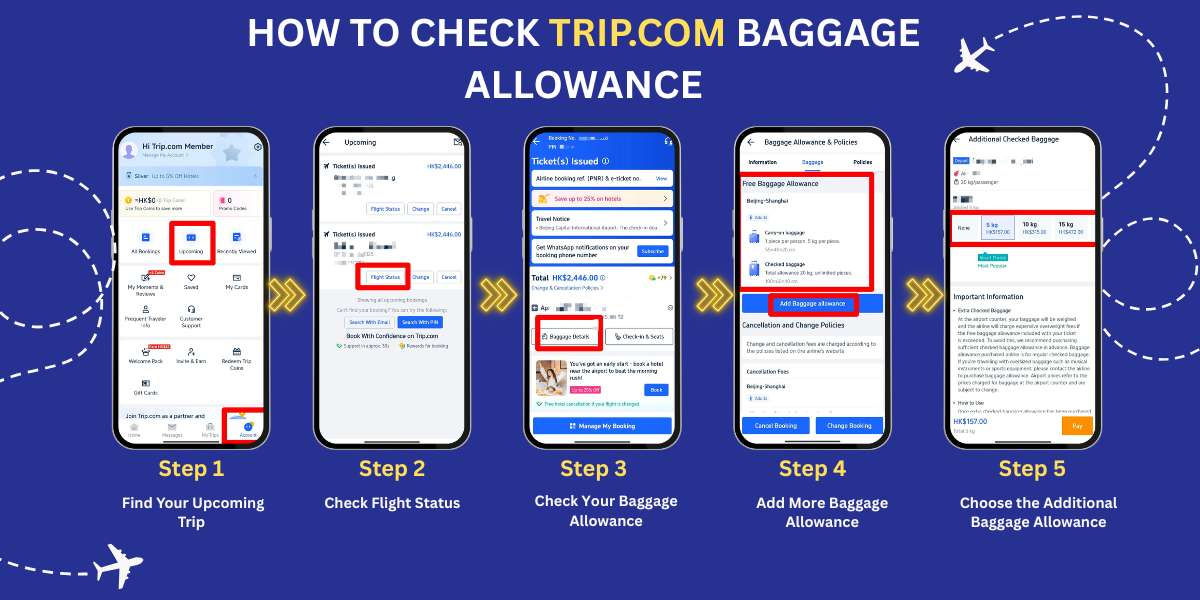
Step 1: Find Your Upcoming Trip
- Open the Trip.com App: Start by opening the Trip.com app on your phone.
- Tap the Account Icon: At the bottom of the screen, you'll see an icon labeled Account. Tap on it to go to your account page.
- Locate the "Upcoming" Section: On your account page, there is a button in the center that says Upcoming. Tap this to view your upcoming trips.
Step 2: Check Flight Status
- Select Your Flight: You will see a list of flights you have booked. Find the one you want to check and tap on it.
- Review Ticket Information: After selecting your flight, you will see basic details about your ticket.
- Tap "Flight Status": To view more information, tap on the Flight Status button.
Step 3: Check Your Baggage Allowance
- Find Baggage Details: On the next page, which shows more detailed ticket information, look for a button labeled Baggage Details. Tap it to view your baggage allowance.
- View What’s Included: On the Baggage Details page, you will see the amount of free baggage included with your ticket. This will show both carry-on and checked baggage allowances, such as the number of bags and weight limits.
- Check the Free Baggage Allowance: For example, it might state that you are allowed one carry-on bag up to 5 kg and checked baggage up to 20 kg.
Step 4: Add More Baggage Allowance
- Tap "Add Baggage Allowance": If you need additional baggage
- Tap the Add Baggage Allowance button on the Baggage Details page.
Step 5: Choose the Additional Baggage Allowance You Want
- Select Extra Baggage: You will see different options for adding more baggage. You can choose how many additional kilograms you need, and the app will show you the cost for each option.
- Smart Choice Option: The app may suggest a Smart Choice option, which is a popular baggage allowance selection chosen by other travelers.
Carry-On vs Checked Baggage
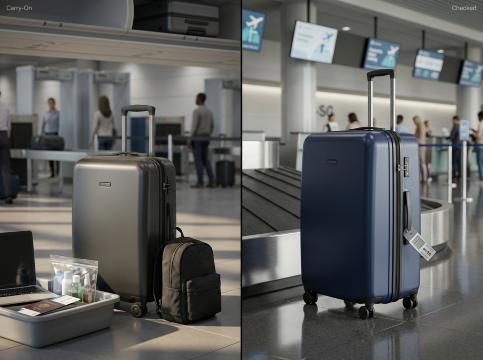
Baggage Comparison
Baggage Type | Key Details |
|---|---|
Carry-On Baggage | Usually includes one cabin bag and one personal item, with strict size and weight limits set by the airline. Budget carriers like AirAsia allow 2 pieces of cabin baggage (up to 7kg total), while Scoot allows 2 pieces (up to 10kg for Economy). |
Checked Baggage | May be included, optional, or unavailable depending on the ticket type—especially common with low-cost airlines. |
Baggage Rules for Low-Cost Airlines
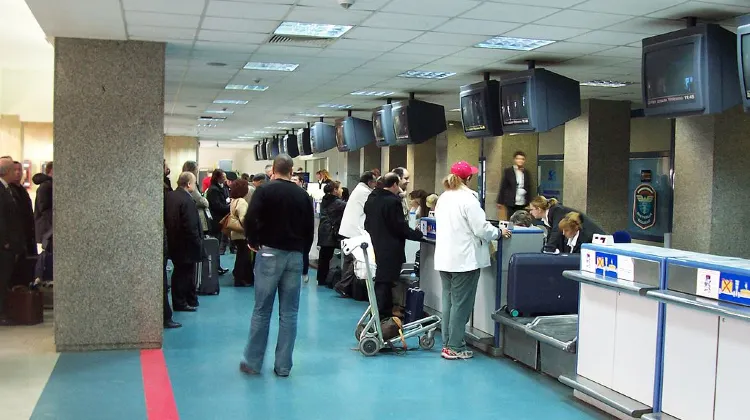
Many budget airlines offer base fares without checked baggage.
When booking through Trip.com:
- Checked baggage may be available as a paid add-on
- Prices are often cheaper when added online rather than at the airport
- Some promotional fares may not allow baggage upgrades
Tips to Avoid Extra Baggage Fees
- Check baggage allowance before confirming your booking, whichi usually includes one cabin bag and one personal item.
- Compare fares with and without checked baggage
- Add extra baggage early if needed
- Measure and weigh your bags before departure
- Review airline rules for connecting flights
Start Your Journey with Trip.com Today!
Trip.com makes it easy to view and manage baggage allowance, but the responsibility ultimately lies with the traveler to understand airline-specific rules.
By checking baggage details carefully before booking, you can avoid unexpected costs and enjoy a smoother travel experience from check-in to arrival.
FAQ: Trip.com Baggage Allowance
-
Does Trip.com include baggage in flight tickets?
-
How can I check my baggage allowance on Trip.com?
-
What is the standard cabin baggage allowance?
-
Can I add extra baggage after booking on Trip.com?
-
Are baggage rules different for low-cost airlines?
Find Cheap Travel Deals & Explore Destinations on Trip.com
-
Popular Content
-
Top Flight Links
-
Popular Hotels
-
Popular Things to Do
-
Featured guides
-
Trip.com links
- Trip.com Customer Service
- Trip.com VIP Lounge
- Buy Now Pay Later
- Trip.com Contact
- Best Credit Cards
- Trip.com Cancellation Policy
- How to Use Trip com Promo Codes
- Singapore Airlines Baggage Allowance
- scoot-baggage-allowance
- How to Book a Student Flight Ticket
- Singapore Airlines Change Flight
- luggage size cabin
- Best Day to Book Flights
- Trip.com Flight Refund
- Flight Classes Explained
- MU2434 Flight Status
- CA490 Flight Status
- CZ8302 Flight Status
- MU7705 Flight Status
- ZG053 Flight Status
- TK066 Flight Status
- QG523 Flight Status
- Cheap flights from Singapore to Shanghai
- Plane tickets from Singapore to Fukuoka
- Plane tickets from Singapore to Bangkok
- Plane tickets from Singapore to Kuala Lumpur
- Plane tickets from Singapore to Seoul
- Cheap flights from Singapore to Manila
- Plane tickets from Singapore to Tokyo
- Cheap flights from Singapore to Bengaluru
- Hotels near Hefeinan Railway Station
- Hotels near Hongcun Aju Theater
- Hotels near Zixiao Palace
- Hotels near Johor Bahru Senai International Airport
- Hotels near Beijing Road
- Chengdu Hotels
- Tokyo Hotels
- Kuala Lumpur Hotels
- Kunming Hotels
- Hong Kong Hotels
- Hotel Les Matins de Paris
- Airport International Hotel (Xuzhou Guanyin Airport)
- Ramada by Wyndham Seoul Dongdaemun
- Mercure Guangzhou Beijing Road Pedestrian Street Hotel
- Atour Hotel (Chengdu Taikoo Li)
- Malaysia 5G eSIM | Supports Google Maps / Tiktok / ChatGPT | Daily / Total Data Plans | 24-Hour Billing | 1–30 Days | QR Code
- Singapore 4G eSIM | Supports Google Maps / ChatGPT | Daily/Total Data Plans | 24-Hour Billing | 1–30 Days | QR Code
- Vietnam Airport VIP Fast Track Service
- VIP Fast Track service for immigration clearance at Tan Son Nhat Airport in HCM
- Foreign Tourist Day Tour: Panda Valley / Dujiangyan / Mt Qingcheng / Blue Tear / Chengdu
- Mainland China 5G eSIM | 3 Carriers · All AI & TikTok | 1–365 Days | QR Code
- Mainland China/Hong Kong/Macau 5G eSIM | 5 Carriers · All AI | Day Pass/Total Data Package | 24-Hour Billing | QR Code
- Singapore - Bintan Resorts Ferry Ticket
- Itoshima Day Tours
- China City Pass
- Rio de Janeiro Surfing
- Venice Surfing
- Fujikawaguchiko Spa & Massage
- Wellness & Spa in Da Nang
- London Sports & Adventure
- Grab Singapore
- Glamping JB
- UOB Visa Signature
- Singapore Airlines New Long-Haul Business Class
- HSBC Travel Credit Card
- Singapore Airlines Western Sydney Airport
- chinese new year getaway
- Johor Bahru Night Market
- Cheap Hotels in Shanghai
- JB Kids Activities
- Indonesia Public Holiday 2027
- penang night market
- Night Markets in Singapore
- Rabbit Card Bangkok
- Best Time to Visit Urumqi
- Hotels in Changsha University of Science & Technology (Yuntang Campus)/Changsha Ecological Zoo
- Hotels in St James
- Hotels near Sanwenbi Village
- Trip.com Promo Code
- Trip.com Flight Deals
- Trip.com Credit Card Promotions
- How to Book Cheap Hotels
- How to Book Cheap Flights
- Trip.com Member Rewards
- Trip Weekly Hotel Sales
- Online Hotel Booking
- Online Flight Booking
- Trip.com Travel Guide
- Book China Train Tickets
- Trip.com Seat Selection
- Singapore Public Holidays 2027
- Trip.com 优惠码
- Trip.com Travel Guides
- Trip.com 10.10 Mega Sale