


Booking a flight online is easy and convenient. With Trip.com, you can search, compare, and confirm your flight in just a few clicks. In this guide, I’ll take you through the whole process of booking a flight ticket online, plus a few tricks to help you save money.
Booking a Flight Ticket On Trip.com Website
Step 1: Create an Account on Trip.com
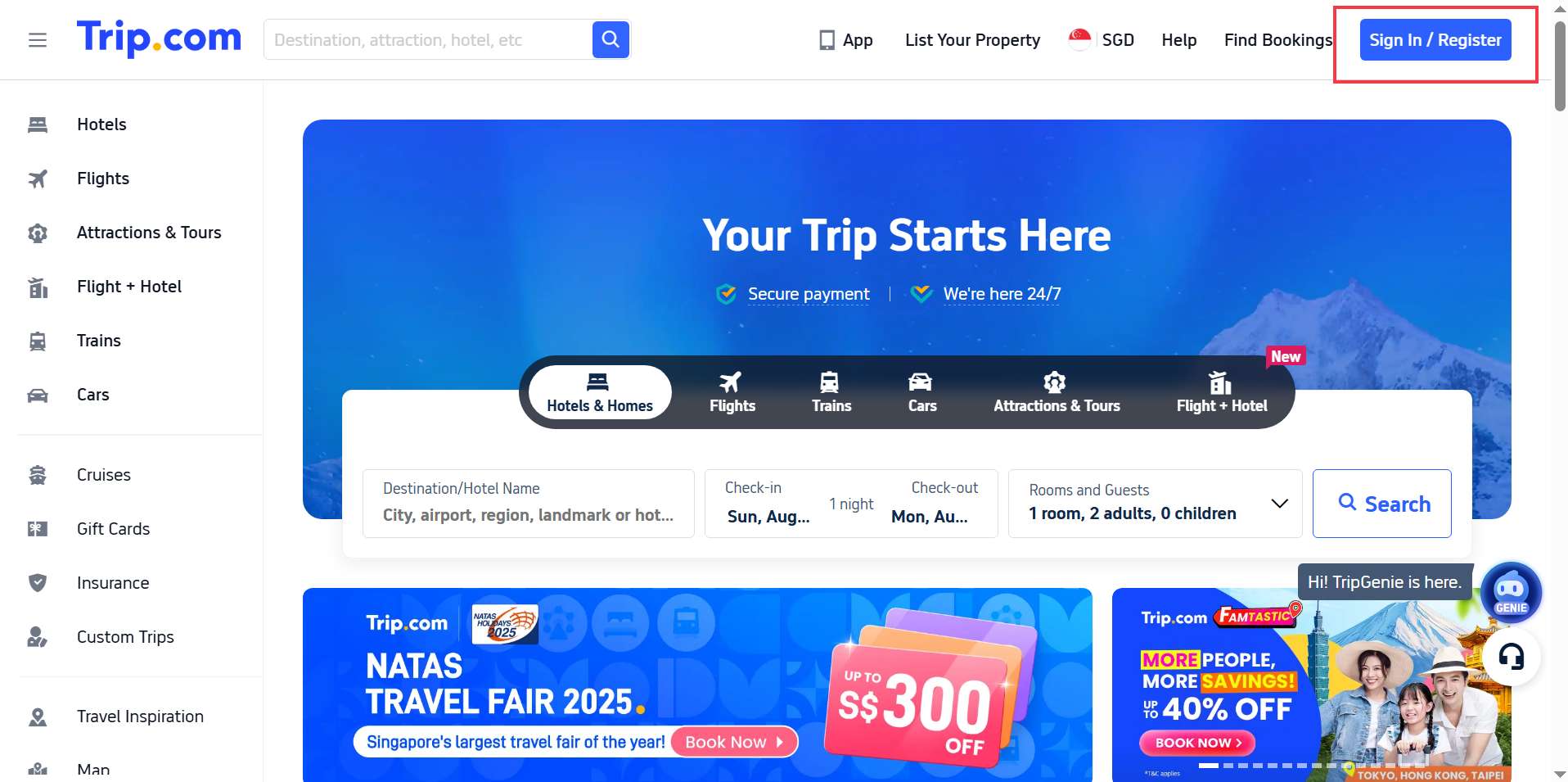
It only takes a minute to creare a Trip.com accounnt. You can save traveller details, track bookings, unlock discounts, and manage your bookings. Just go to Trip.com homepage and click “Sign In/Register” at the top right. You can register with your email or simply link your Google/Apple account.
Step 2: Search for Flights
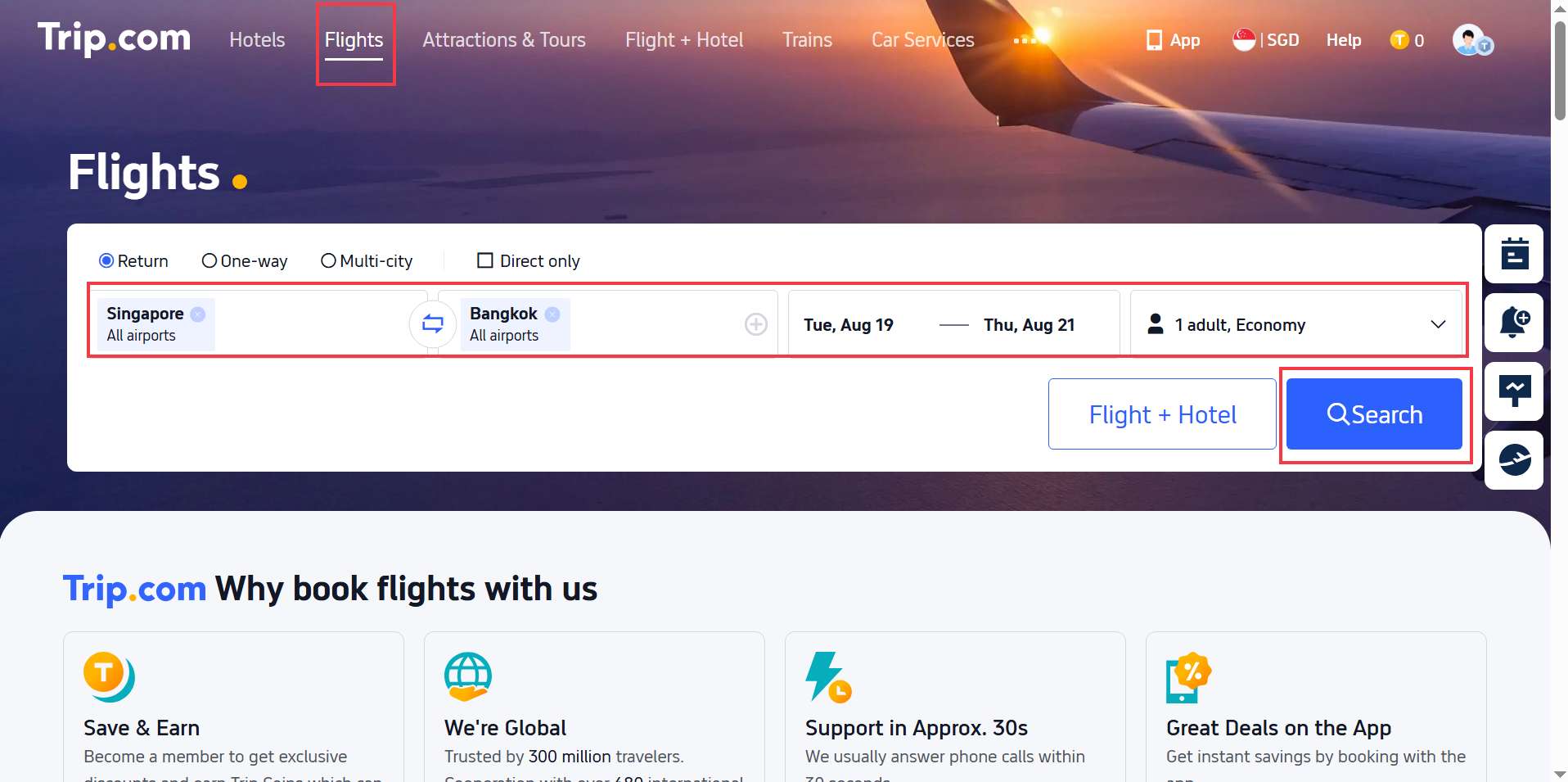
Go to “Flights”. Enter your departure city, destination, travel dates, and number of passengers in the search bar. Trip.com will show you a list of available flights.
Step 3: Compare Flights
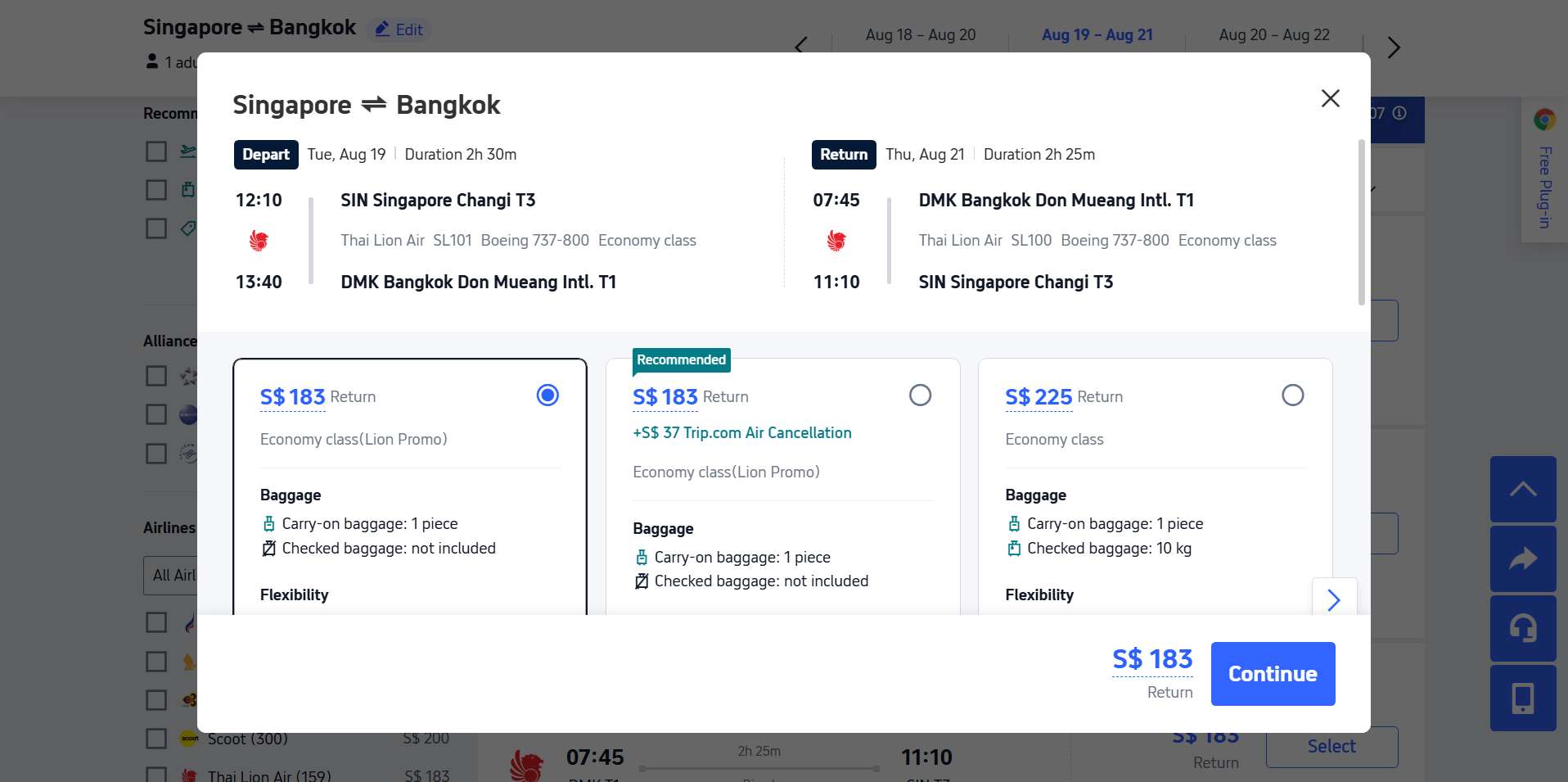
Use the filters to compare different flights by price, airline, flight duration, or number of stops. You can quickly find the option that fits your travel plans best. Remember to check the flight times, layovers, baggage allowance, and cancellation policies.

Step 4: Select Your Flight & Add Extras
When you’ve found the flight that suits you, click to select it. Before confirming, you’ll have the chance to add extras such as checked baggage, seat selection, meals, or travel insurance.
Step 5: Enter Traveller Details
Fill in the required information for each passenger, including full name, date of birth, and passport or ID details. Double-check everything carefully, because any mistakes can cause problems at check-in.

Step 6: Make Payment & Confirmation
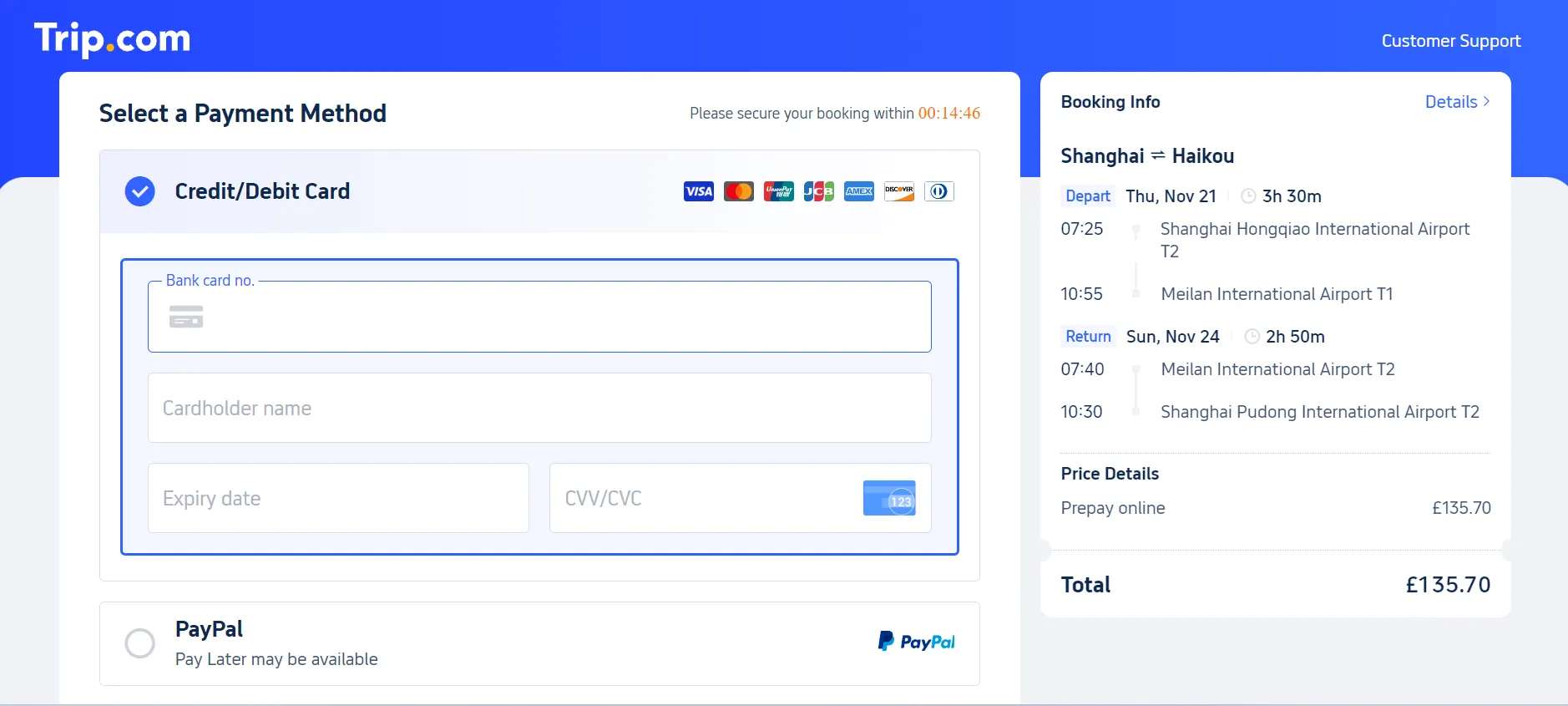
Choose your preferred payment method and complete the transaction. Trip.com accepts credit/debit cards and PayPal. After payment, you’ll receive a confirmation email with your e-ticket.
Step 7: Online Check-In
Most airlines allow you to check in online 24–48 hours before departure. Log in to Trip.com or the airline’s website, select your flight, and download or print your boarding pass. Online check-in saves time at the airport and lets you choose seats in advance.
Booking a Flight Ticket On Trip.com App
Step 1: Download and Open the App
Install the Trip.com app from the App Store or Google Play. Open it and either sign in to your existing account or create a new one. Having an account makes managing bookings and accessing member deals much easier.

Step 2: Search for Flights
Go to “Flights”. Enter your departure city, destination, travel dates, and number of passengers. Tap Search to see available flights.
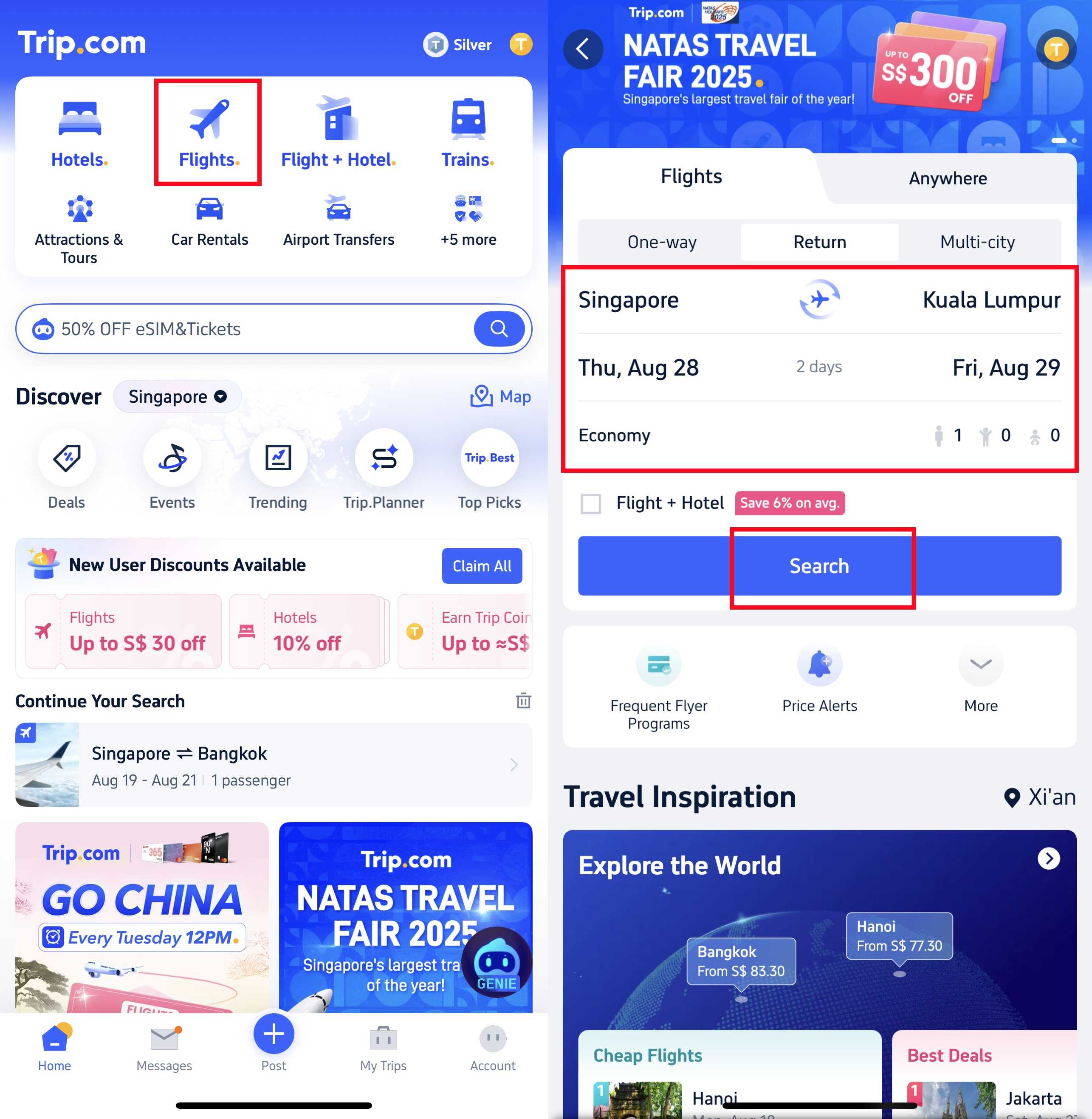
Step 3: Compare Options
Scroll through the results and compare flights. You can filter results by price, airline, duration, and stops to find the option that best suits your plans. Pay attention to flight times, layovers, baggage policies, and cancellation rules.
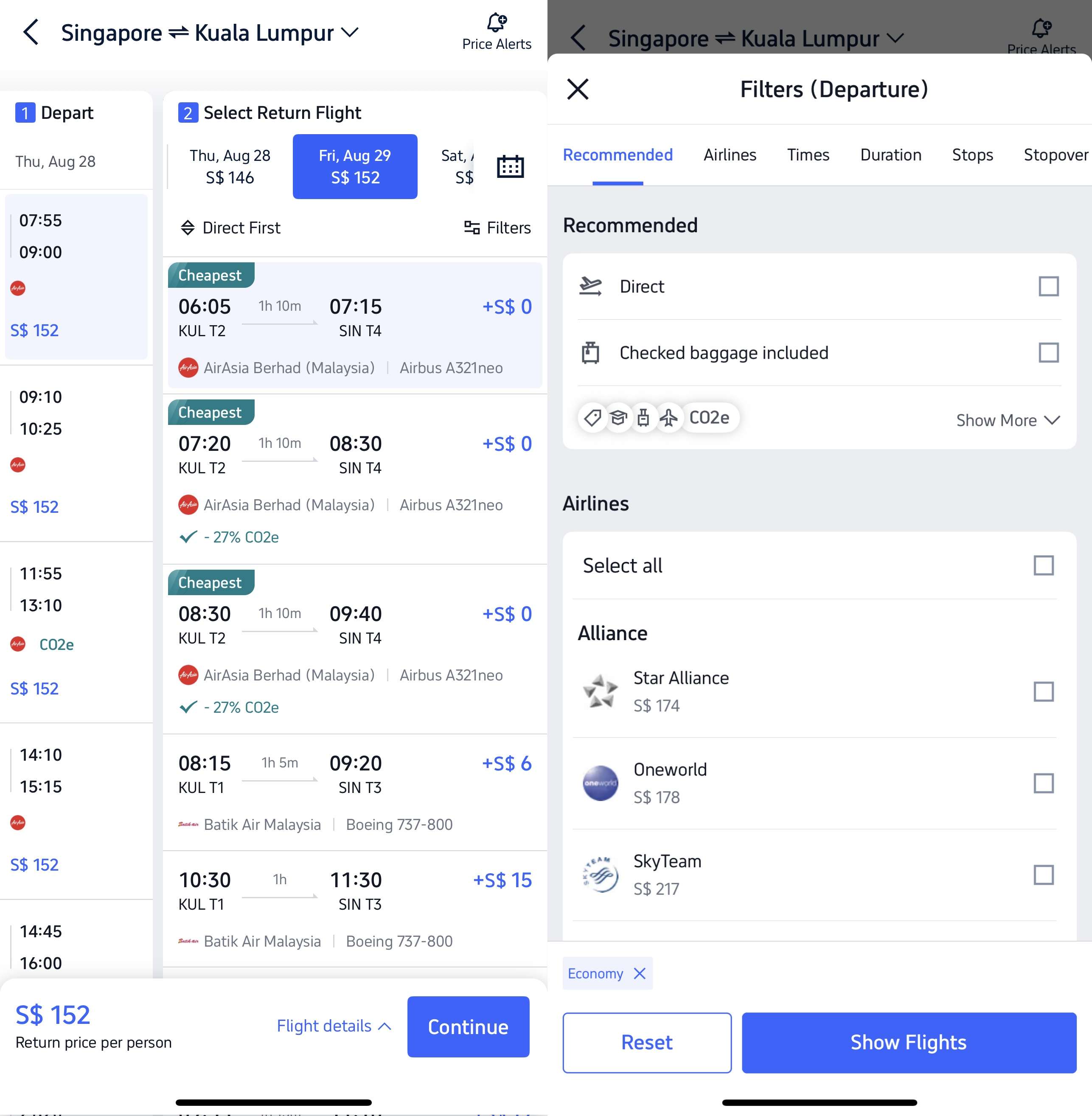
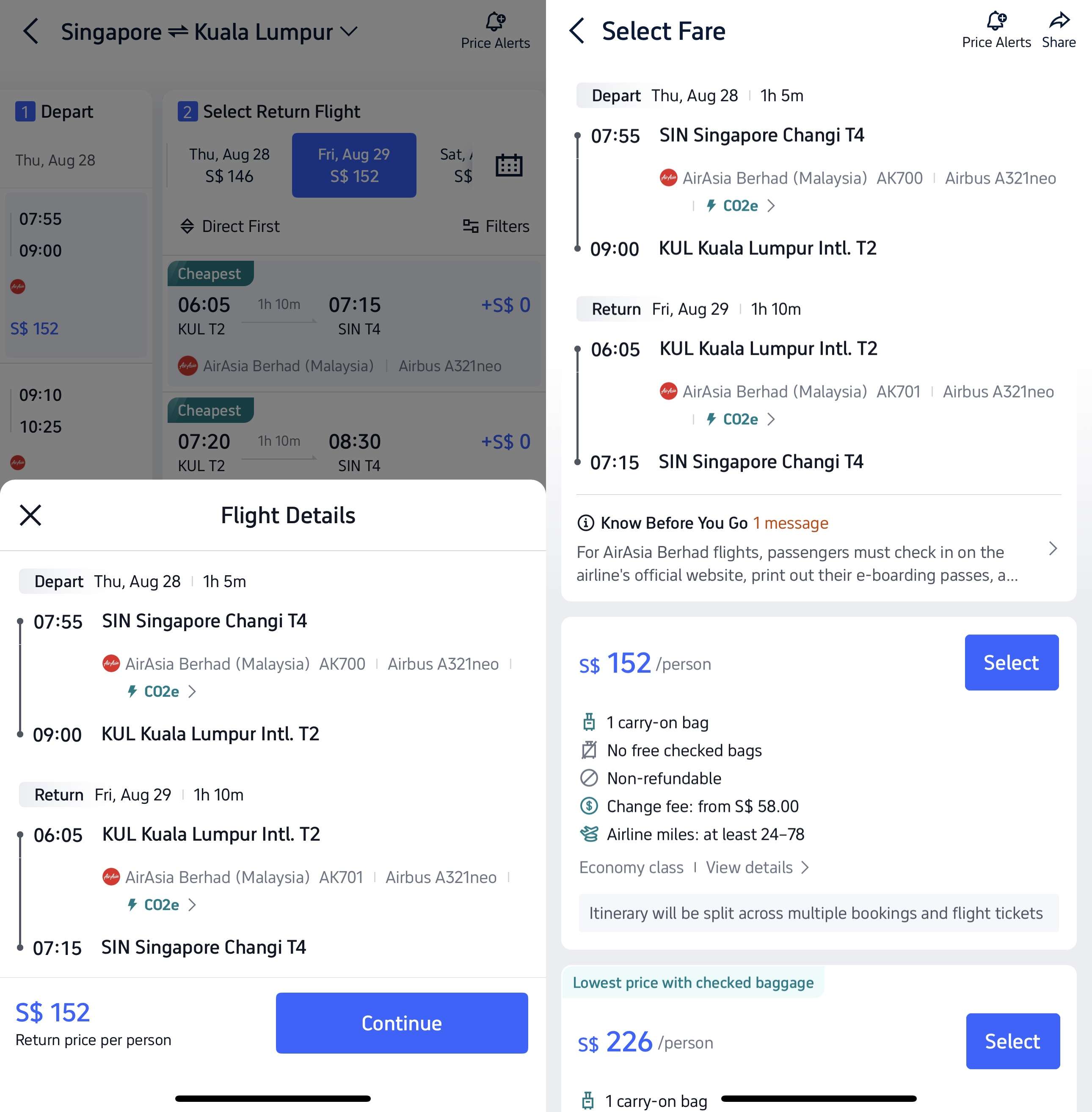
Step 4: Select Your Flights
Tap on your chosen flight to select it. You can add extras such as checked baggage, seat selection, meals, or travel insurance.
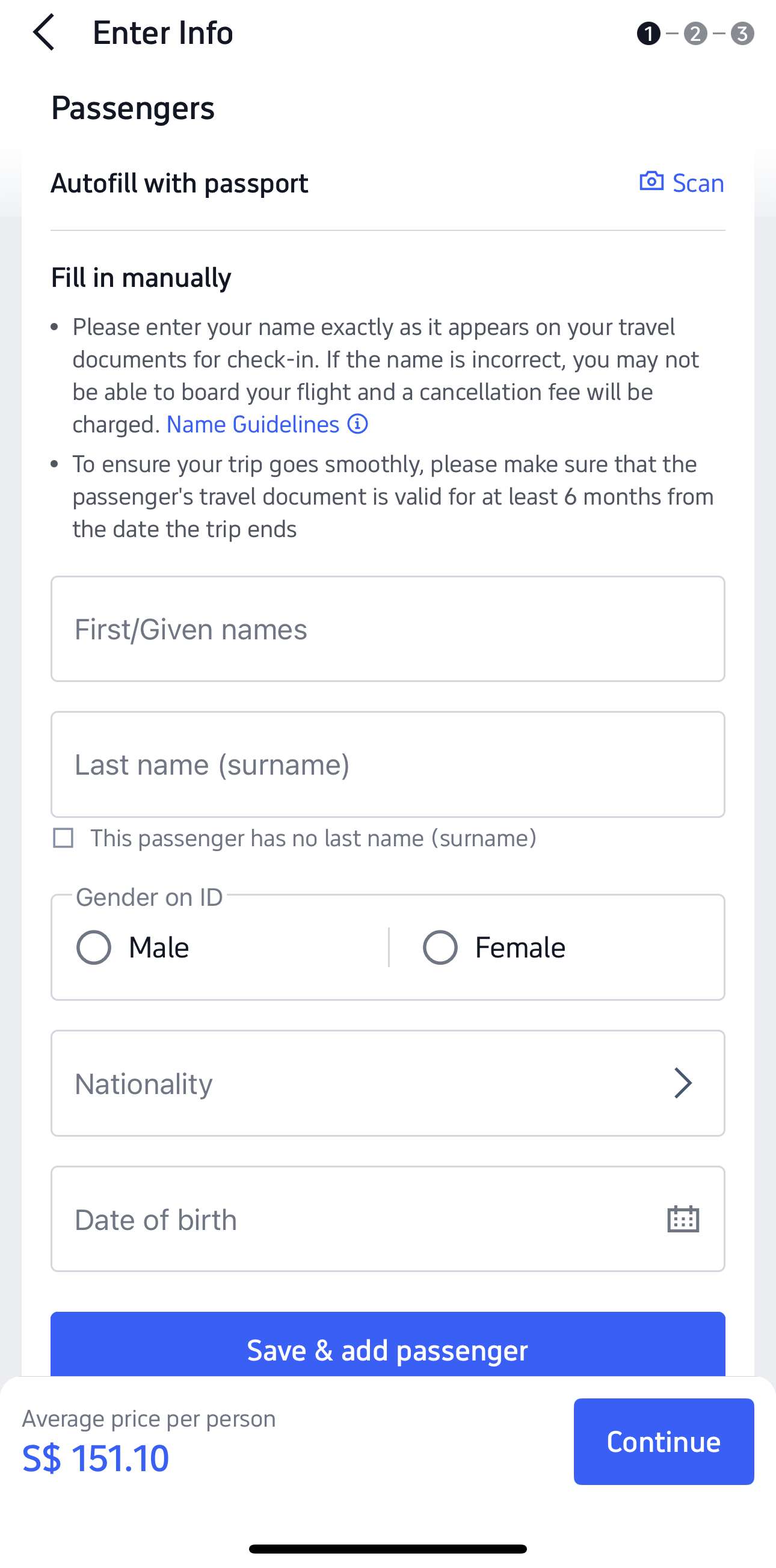
Step 5: Enter Traveller Details
Fill in passenger information, including full names, birthdates, and passport/ID numbers.
Step 6: Make Payment & Confirmation
Choose your payment method and complete the booking securely. After payment, you’ll receive an e-ticket via email and in the app.
Step 7: Online Check-In
Most airlines allow online check-in via the app 24–48 hours before departure. Select your flight, confirm details, and download or save your boarding pass. This speeds up your airport experience and lets you pick seats in advance.
Benefits of Using Apps
- Convenience: Search, compare, and book flights anytime, anywhere.
- Real-time notifications: Receive alerts for price drops, flight changes, and special deals.
- All-in-one management: Keep your bookings, e-tickets, and travel details in one place.
- Extra perks: Earn and redeem loyalty points directly through the app.
- Faster check-in: Many airlines let you check in and get boarding passes from the app.
How to Cancel a Flight?
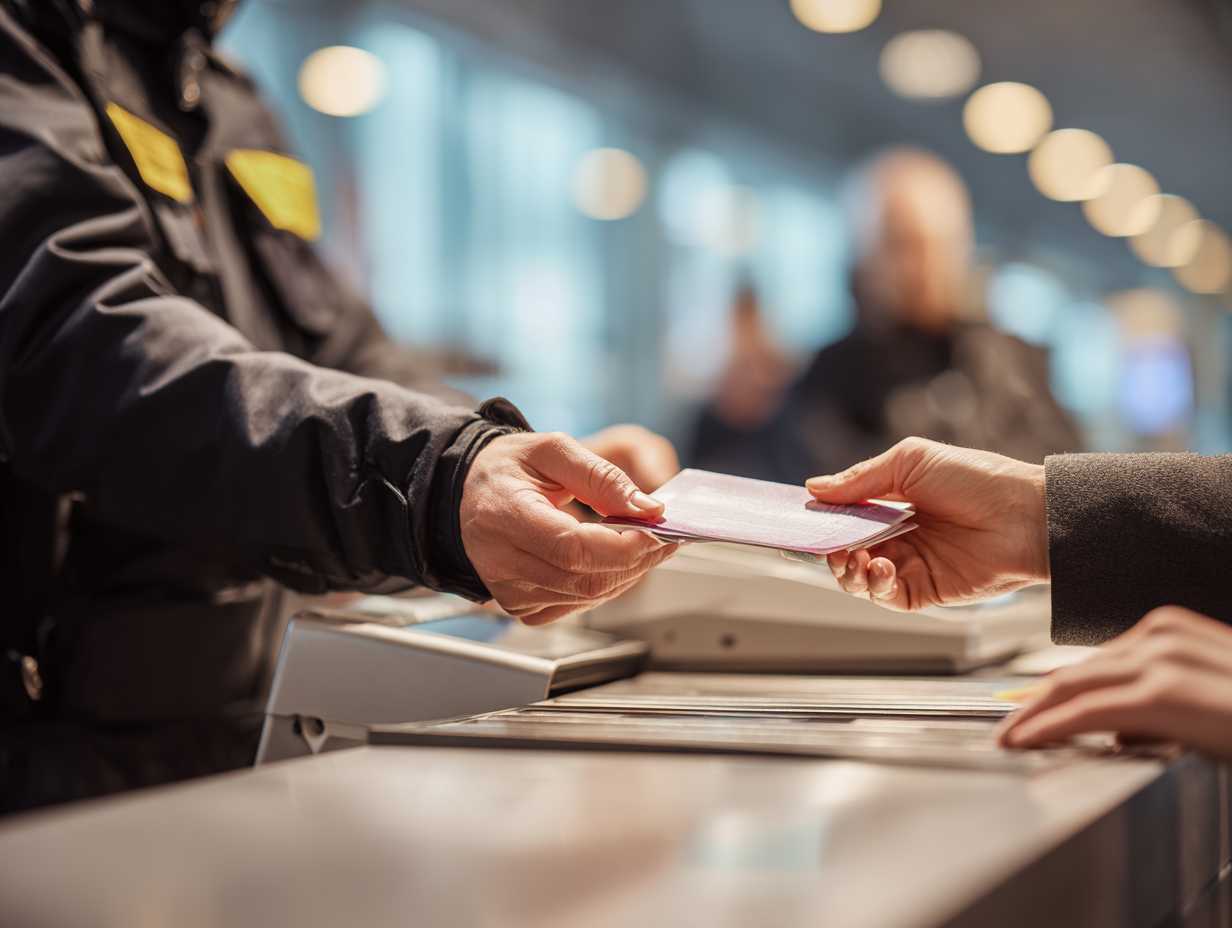
Cancellation rules on Trip.com depend on the airline and the type of ticket. Some tickets are fully refundable, others may charge a fee, and some are non-refundable. It’s important to check your fare details before proceeding.
- Open the Trip.com app or website and go to My Trips.
- Select the booking you want to cancel under Manage My Booking.
- Tap Cancel Booking and follow the instructions to see any fees or refund amounts.
- Confirm your cancellation.
- Refunds will be processed according to the airline’s policy and may take a few days to appear in your account.
Tips to Save Money on Online Flight Booking

- Set price alerts: Trip.com lets you track price changes and grab deals when fares drop.
- Book in advance: Booking flights 45-60 days before your travel dates might save money.
- Compare nearby airports: Flying from or to a different airport might be cheaper.
- Use loyalty programs and promotions: Redeem points or apply promo codes to lower your total cost.
- Check baggage and fees: Sometimes a slightly higher ticket with included baggage is cheaper than a low-cost fare with add-ons.
- Use incognito mode: Browsing in a private or incognito mode can help you see unbiased fares and avoid sudden price hikes.
FAQs About Booking a Flight Ticket Online
Is it safe to book flights online?
Yes! Using trusted platforms like Trip.com ensures your payment and personal information are secure. Always double-check before entering payment details.How can I find the cheapest flights?
Compare prices across different dates and airlines, set fare alerts on Trip.com, and consider nearby airports. Booking early or during promotions often helps too.Can I change or cancel my flight after booking?
Yes, but it depends on your ticket type and airline policies. Flexible tickets allow changes with minimal fees, while non-refundable fares may have restrictions. You can manage all changes through Trip.com’s website or app.Do I need to print my boarding pass?
Not necessarily. Most airlines accept mobile boarding passes, which you can access via the Trip.com app or the airline’s app. Printing is optional but sometimes useful as a backup.Can I book flights for multiple passengers at once?
Absolutely. Just enter the number of passengers during the search, and make sure all traveller details are accurate before payment.