Travel plans don’t always go as expected. Whether you need to change your flight time, update passenger details, or adjust your hotel stay, Trip.com booking change options make it easier to manage your reservations without starting from scratch.
This guide explains everything you need to know about changing your booking on Trip.com.
Can You Change a Booking on Trip.com?

Yes, but it depends on the airline, hotel, or service provider’s policies. Trip.com acts as an agent, so the ability to make changes and any fees involved are determined by the provider.
Flights ✈️
- Many airlines allow changes to flight dates, times, or routes.
- Fees usually apply, and you may need to pay any fare difference if your new flight is more expensive.
- Low-cost carriers like Scoot or AirAsia may require you to make changes directly on their websites.
Hotels 🏨
- Some hotels are flexible and let you adjust check-in or check-out dates, update guest names, or change your room type.
- Strict or non-refundable rates often cannot be changed, so always read the cancellation/change policy before booking.
- If allowed, changes are usually instant once confirmed through the Trip.com app.
Trains & Cars 🚆🚗
- Train tickets and car rental bookings have specific change conditions set by the operators.
- Some may allow date or time changes, while others may not permit any modifications at all.
- Always check the provider’s terms to avoid surprises.
How to Change a Flight Booking on Trip.com
Follow these steps to request a booking change:
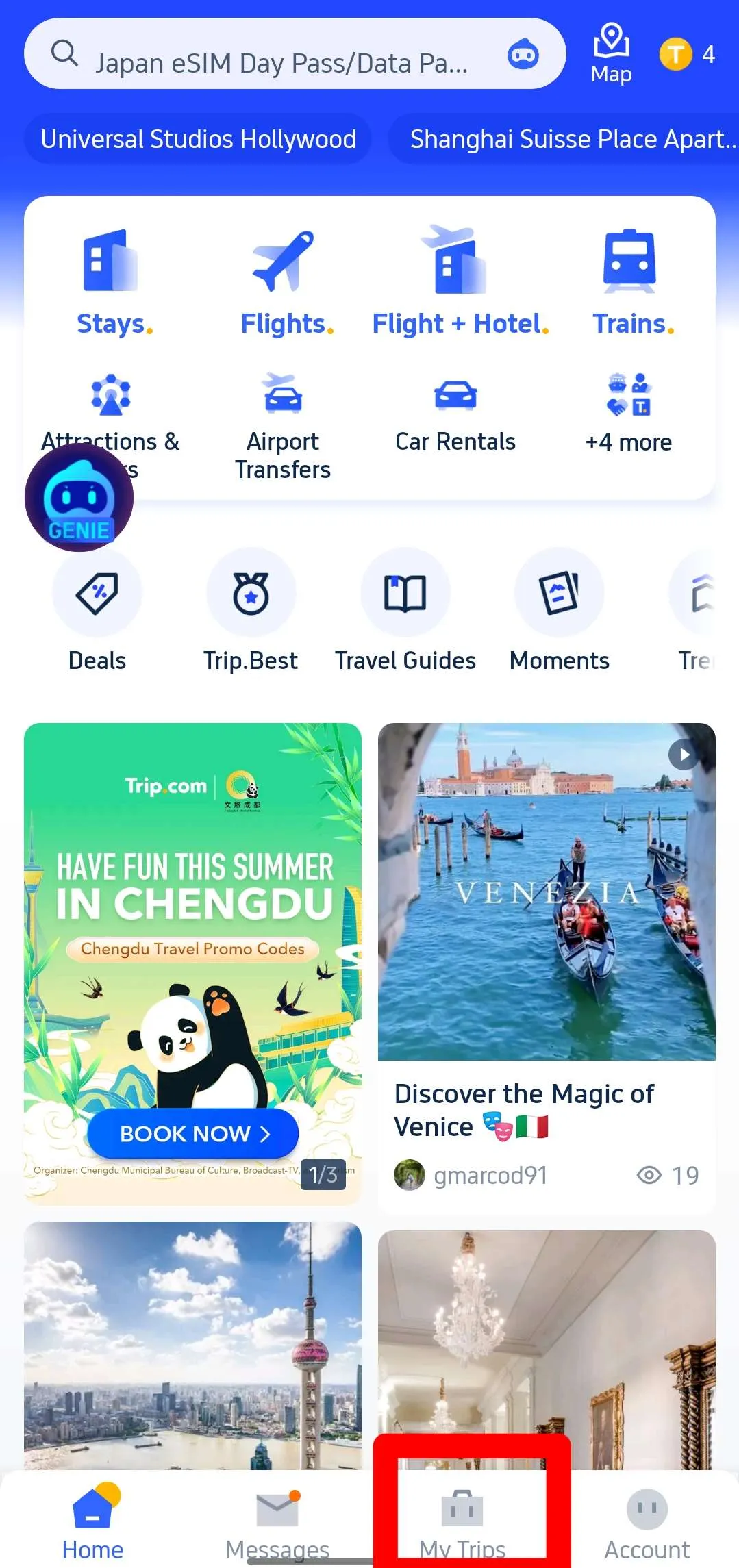
Step 1: Find Your Booking on My Trips
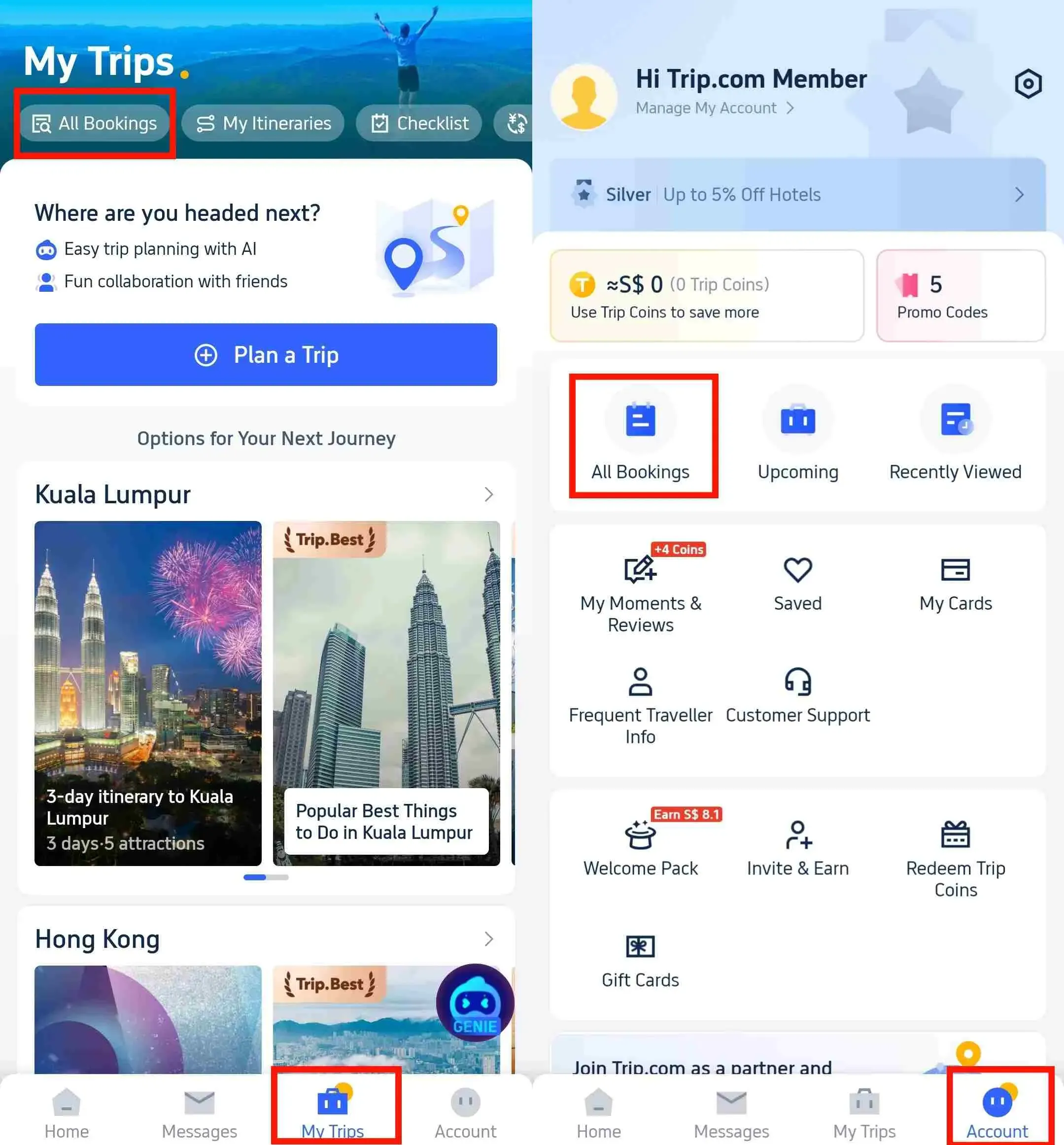
- Open the Trip.com mobile app on your mobile devices, log in to your account.
- Tap 'My Trips' at the bottom of the Trip.com app to view the details of your bookings.
- All your bookings are clearly displayed by date and time on My Trips page.

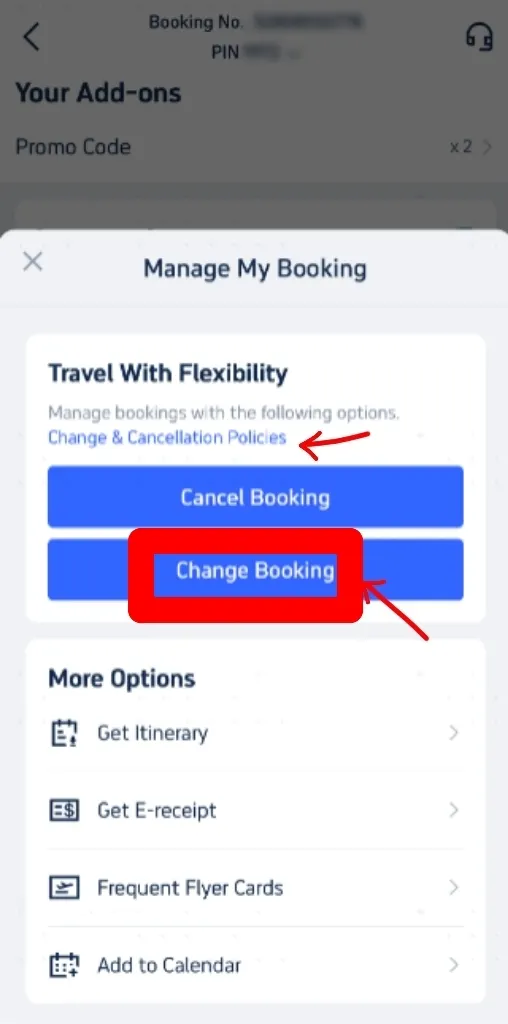
Step 2: Go to Manage My Booking and Change Booking
- Select the ticket you want to change from your booking history. Go to the reservation page for your booking and click "Manage My Booking".
- You can find Trip.com ticket change fees and cancellation rules by clicking on 'Cancellation & Change Policies'.
- On the 'Manage My Booking' screen, select 'Change Booking' to proceed to the change request page. Here, you can review these policies again.

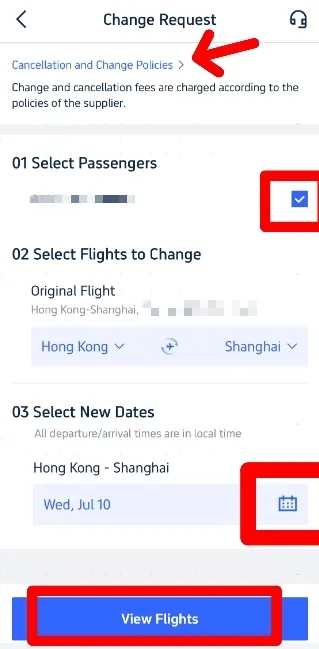
Step 3: Enter your info on the 'Change Request' page
- On the 'Change Request' page, Choose the passengers who need to change their flight.
- Confirm it’s the original flight you want to change and select new travel dates by clicking the calendar button.
- Once you have entered all the information, click on 'View flights'.

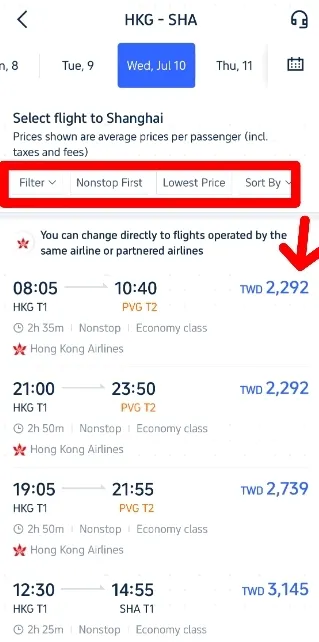
Step 4: Select New Flights
On the next page, browse the available flights and select the one you prefer.
Use filters such as ‘Non-stop’ or ‘Lowest Price’ to select your desired flight. Ensure the new flight is operated by the same airline or partner airlines.
Tap the flight you want to change, then select Economy or Business Class and choose your preferred option.

Step 5: Confirm Booking
- After selecting your flight, proceed to confirm your new booking details on My Booking page.
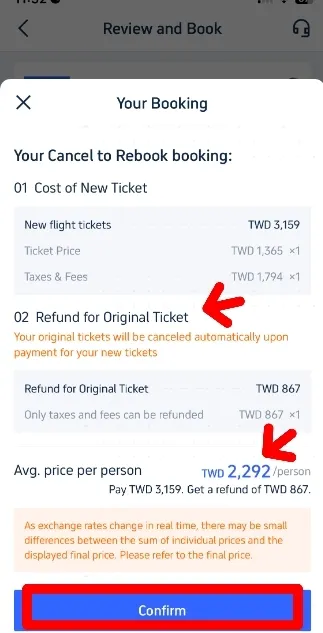
- Check the Refund for Original Ticket against the cost of the new ticket. The final price will be calculated accordingly. 👇👇
- If the new flight cost is acceptable, 'Confirm' your selection and proceed to payment. Once payment is made, you’ll receive confirmation of your updated booking. Verify all details are correct.
- Once confirmed, you will receive a new booking confirmation email and a refund confirmation email. The actual timing of the refund will depend on your bank/card issuer.

How to Change a Hotel Booking on Trip.com
Step 1: Log in to your Trip.com account or app and go to “My Bookings” → select your hotel reservation.

Step 2: Tap “Change” to update check-in/out dates, room type, or guest details.
- To adjust your check-in or check-out dates, switch to a different room type, or edit guest information.
Step 3: Confirm changes and pay any price difference.
- Review the updated reservation details carefully before finalizing your request.
- If the new booking costs more, pay the additional amount to complete the modification successfully.
Fees for Booking Changes

Airline Fees
Based on fare class and airline rules (can range from S$50 to over S$200).
Hotel Fees
Free for flexible bookings; non-changeable for restricted rates.
Trip.com Service Fees
Sometimes applies, depending on the booking
Tips to Avoid High Change Fees

Book Flexible Options
Always choose flexible flight tickets or hotel bookings if your plans are not confirmed, as they allow easier changes without high penalties.
Change Early
Try to make changes as soon as possible, because last-minute modifications often come with higher fees and limited availability.
Look for Promotions
Keep an eye on Trip.com promotions, since they sometimes waive change fees or offer discounts that can help you save money.
Conclusion

Changing your Trip.com booking is possible, but rules vary depending on the airline, hotel, or service provider.
Always read the fare conditions before booking, and use the Trip.com app to request changes quickly. With the right planning, you can manage your trip smoothly without unnecessary costs.
FAQ: How to Modify Flight and Hotel Booking
Can I change passenger names on Trip.com?
Usually no, but minor corrections (like spelling errors) may be allowed depending on airline policy.Can I change my hotel check-in date on Trip.com?
Yes, if the hotel’s policy allows changes. Non-refundable bookings cannot be modified.How long does it take for changes to be confirmed?
Flight changes are usually instant; hotel changes depend on the property’s approval.Can I change a booking after check-in?
No, changes must be made before the scheduled check-in or departure.Do I need to pay extra when changing a booking?
Yes, if the new booking is more expensive or if fees apply.