





How to Change Your Email Address on Trip.com

Author's Profile Picture
Change email address on Trip.com

Your email address plays an important role when using Trip.com, as it's where you'll receive booking confirmations, payment receipts, itinerary details and important travel updates.

If you've changed your email account or entered the wrong address when registering, you may need to update it to make sure you don't miss any important notifications.

Fortunately, changing your email address on Trip.com is straightforward. In this guide, we'll walk you through the steps to update your registered email address, explain what to do if you can't make the change and share tips for resolving common email-related issues.

How To Change Your Email Address on Trip.com

Trip.com email address change procedure

On the website

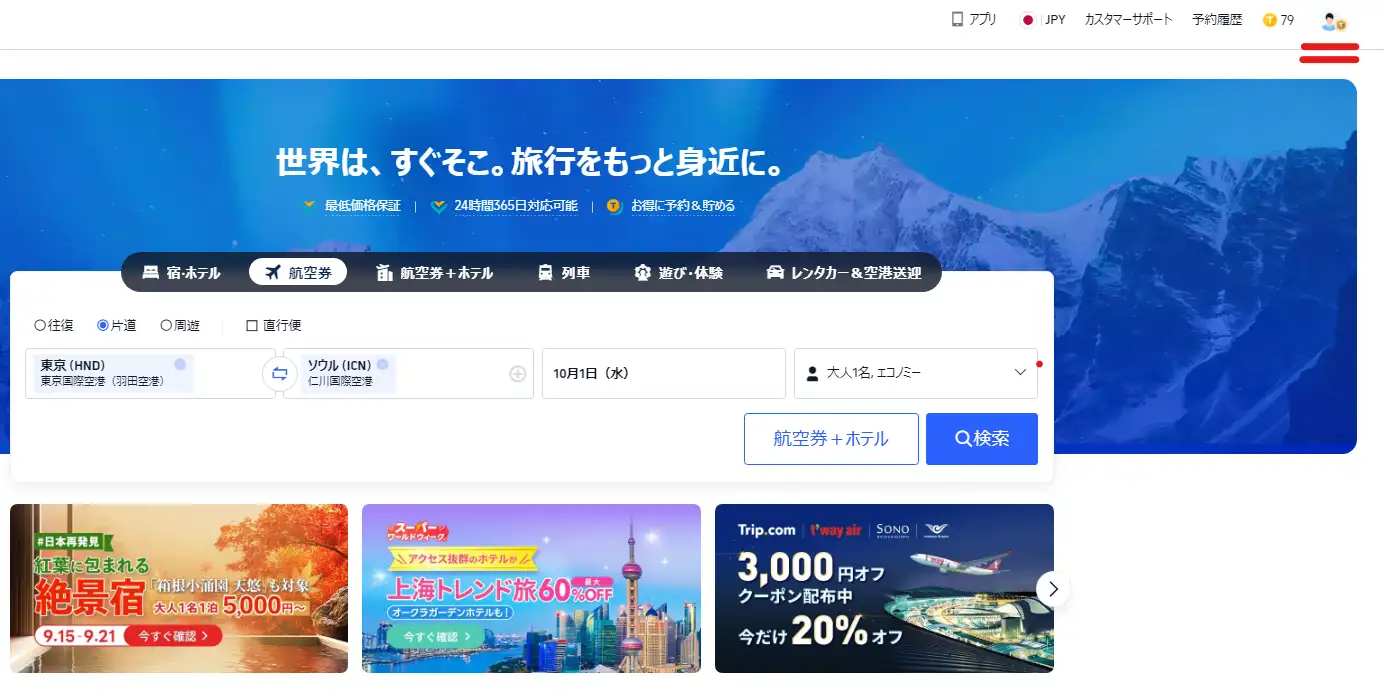
Step 1: Log in to the Trip.com official website and click the "Member icon" in the upper right corner

  • First, go to the Trip.com official website and log in with your current account information.
  • After logging in, click on the member icon (profile) displayed in the upper right corner of the screen to open the account menu.
How to make changes on the website

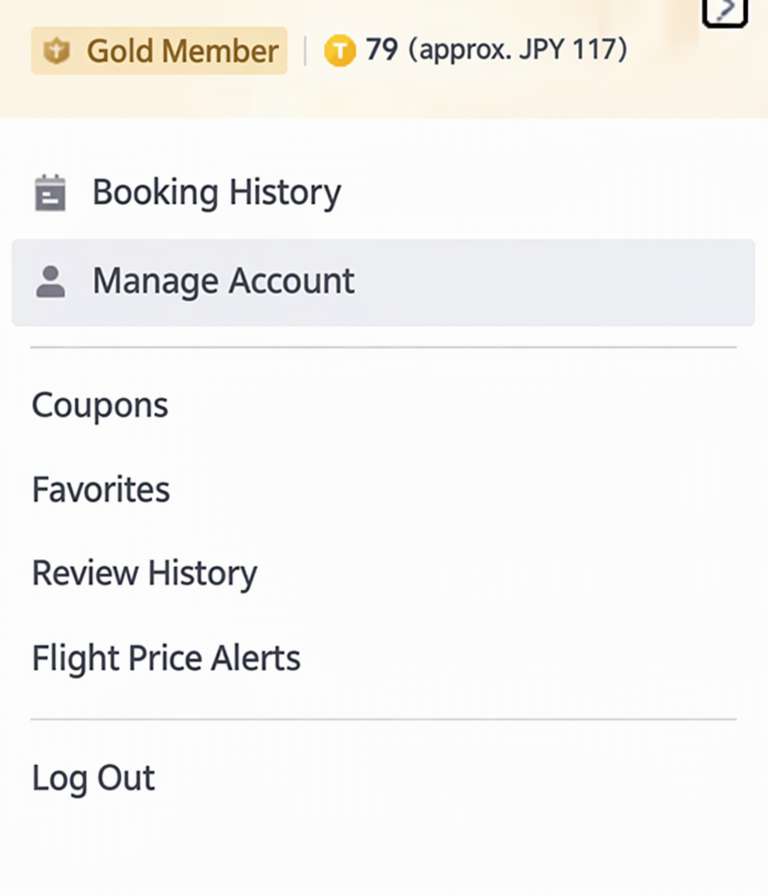
Step 2: Select "Manage Account"

  • Click the member icon and select "Manage Account" from the menu.
  • From here, you can access the account modification screen.
How to make changes on the website 2

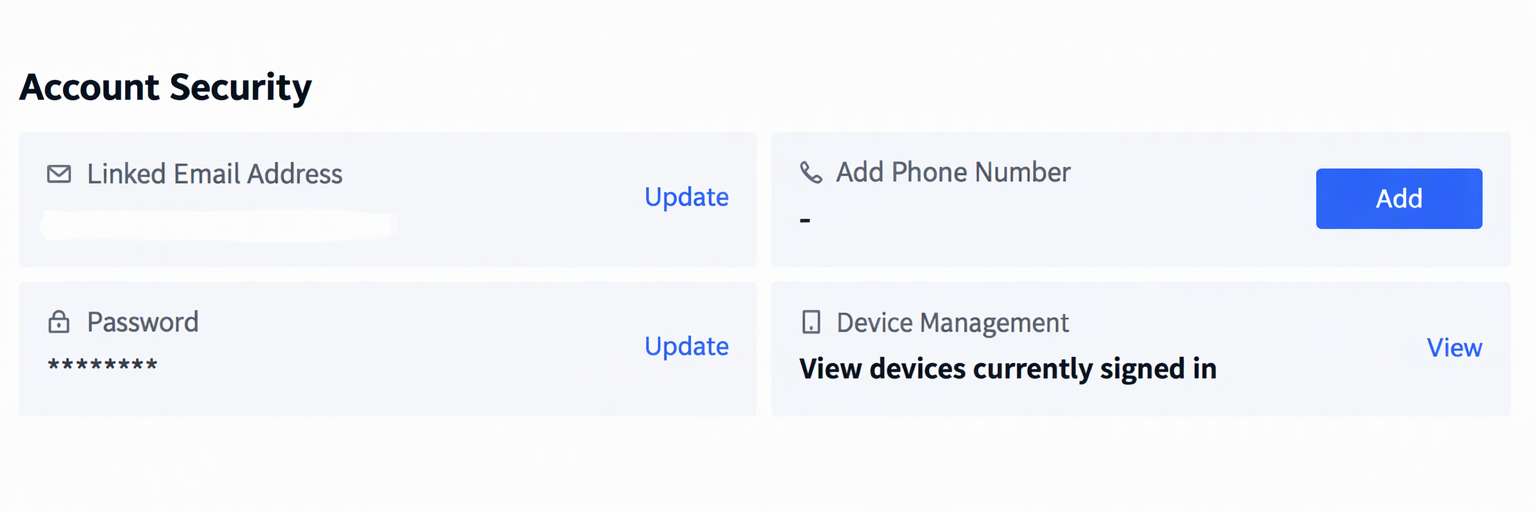
Step 3: Select "Update registered email address"

  • On the account management screen, you will see a section called "Security" or "Account Security."
  • There, click the "Update" or "Change" button next to your currently registered email address.
How to make changes on the website 3

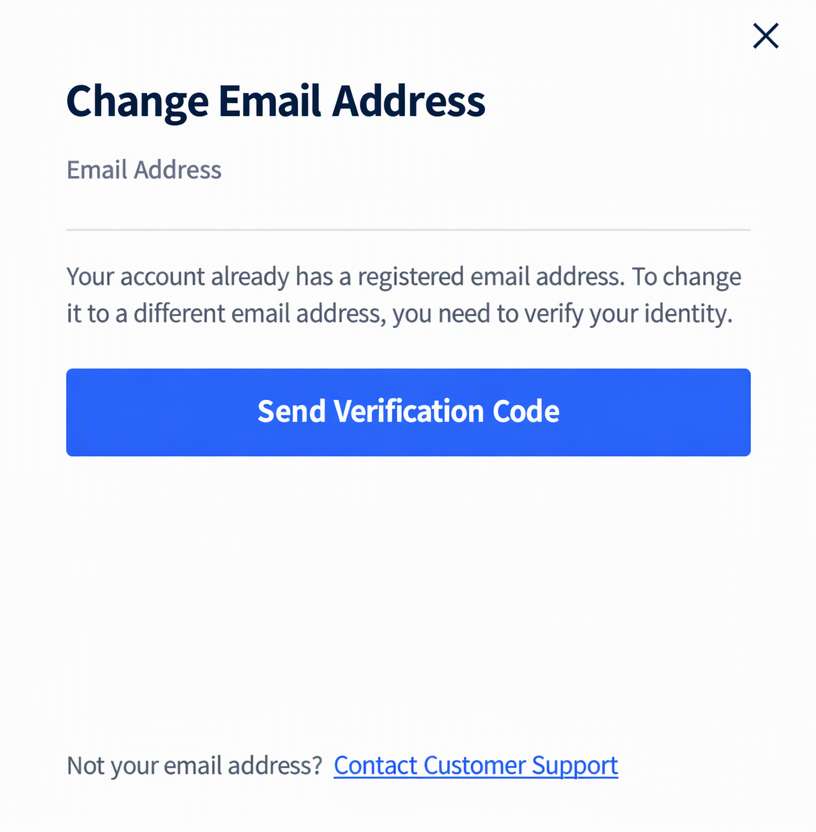
Step 4: Send the verification code

  • To change your email address, you must first verify your identity.
  • Clicking "Send Verification Code" will send a verification code to the email address currently linked to your account.
How to make changes on the website 4

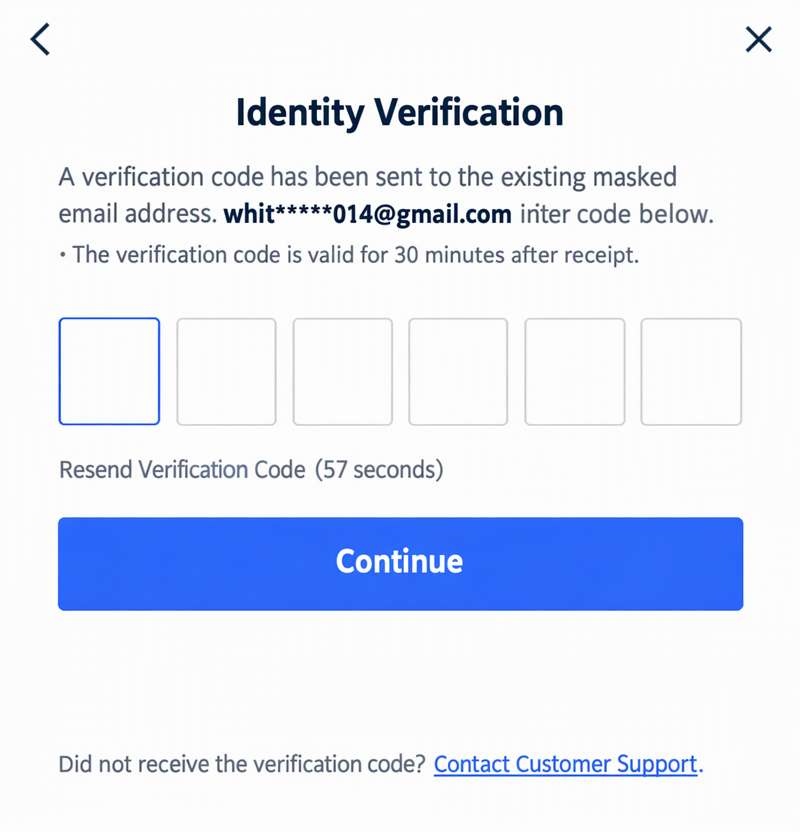
Step 5: Verify your identity

  • Enter the verification code you received into the screen and select "Next."
  • If you are unable to use your current email address and cannot receive the verification code, please contact customer support using the instructions displayed on the screen.
How to make changes on the website 5

On the app

You can also change your email address through the Trip.com app. Since you can easily change it from your smartphone, you can update it even when you're on the go.

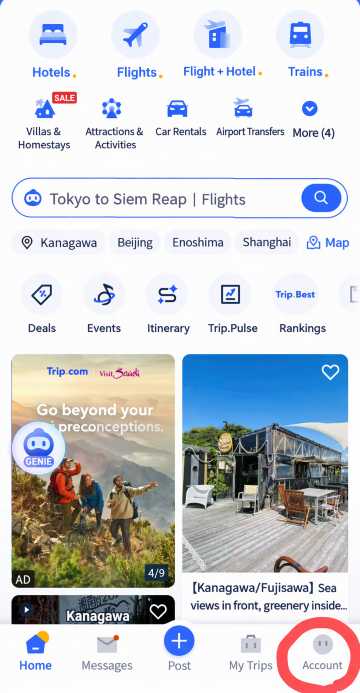
Step 1. Open the Trip.com app and tap "Account" in the bottom right corner

  • Launch the Trip.com app installed on your smartphone and log in.
  • From the menu at the bottom of the screen, tap the "Account" or "My Page" icon in the bottom right corner.
How to make changes on the phone

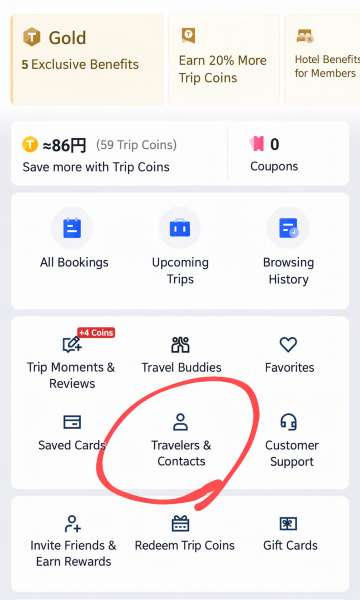
Step 2: Tap Traveler/Contacts

  • Once the account screen appears, find and tap "Travelers & Contacts" in the menu.
  • Here you can view and edit your registration information.
 How to make changes on the phone 2

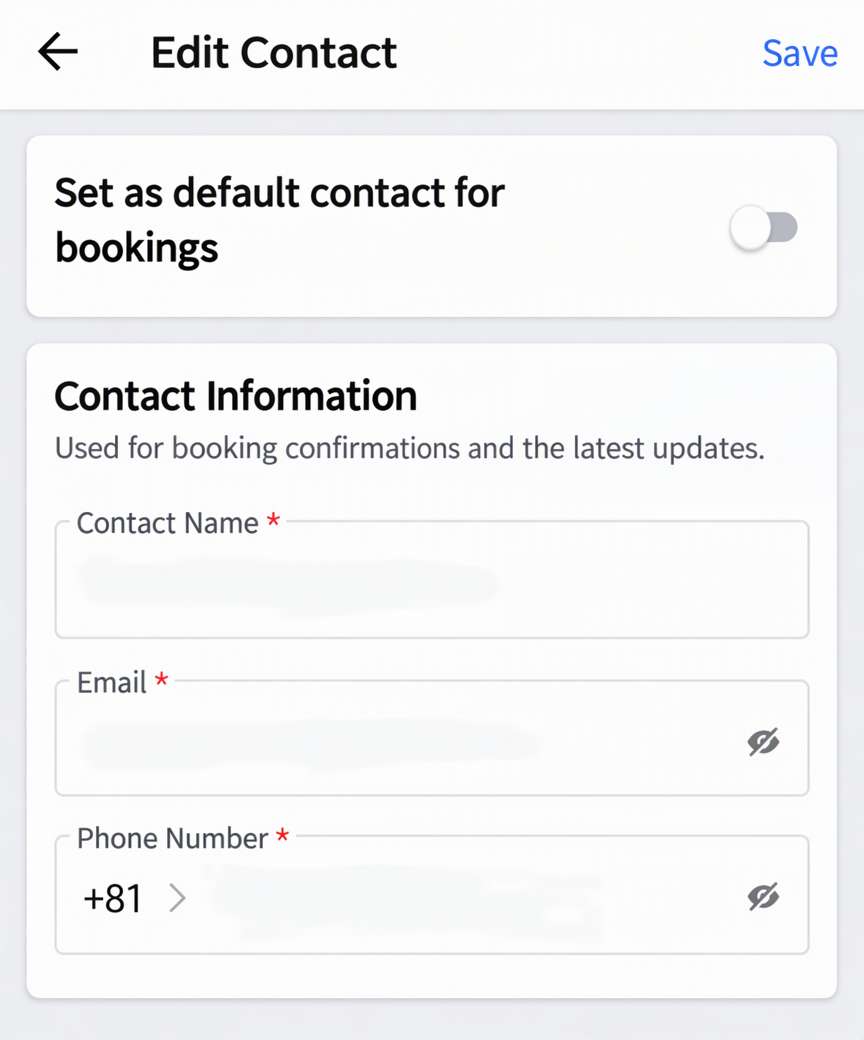
Step 3: Tap Edit Contact and change the email address

  • On the contacts screen, tap the "Edit" button or "Edit Contact" and change the email address to the new one.
  • After making the change, you may be required to go through a verification process.
 How to make changes on the phone 3

How to Deal With Common Email Address Problems on Trip.com

How to deal with common email address problems on Trip.com

I entered the wrong email address

If you provided an incorrect email address when making a booking, you may not receive your confirmation email or other important notifications.

What you can do:

  • Log in to your Trip.com account and check your booking history.
  • Use the booking search feature on the official Trip.com website to look up your reservation.
  • If your booking details are still unavailable, contact Trip.com customer support for assistance.

I haven't received the verification code

Trip.com usually sends verification codes automatically, but delivery may sometimes be delayed due to email provider issues or other settings.

What you can do:

  1. Check your spam or junk folder in case the email was filtered.
  2. Make sure the email address you entered is correct.
  3. Review your email provider's domain and receiving settings to ensure messages from Trip.com aren't blocked.

I'm not receiving emails from Trip.com

If you're not receiving any emails from Trip.com, check your email account settings to identify the possible cause.

What you can do:

  • Check that your registered email address is spelt correctly.
  • Make sure your email provider isn't blocking incoming messages from Trip.com.
  • Check whether your mailbox has reached its storage limit and clear some space if necessary.

🔥Unlock 8% OFF on Car Rentals

Whether you're planning a road trip, a business journey, or just need a reliable ride, now is the perfect time to save. Use the coupon to enjoy this exclusive offer. Rent a car today and hit the road with extra savings!


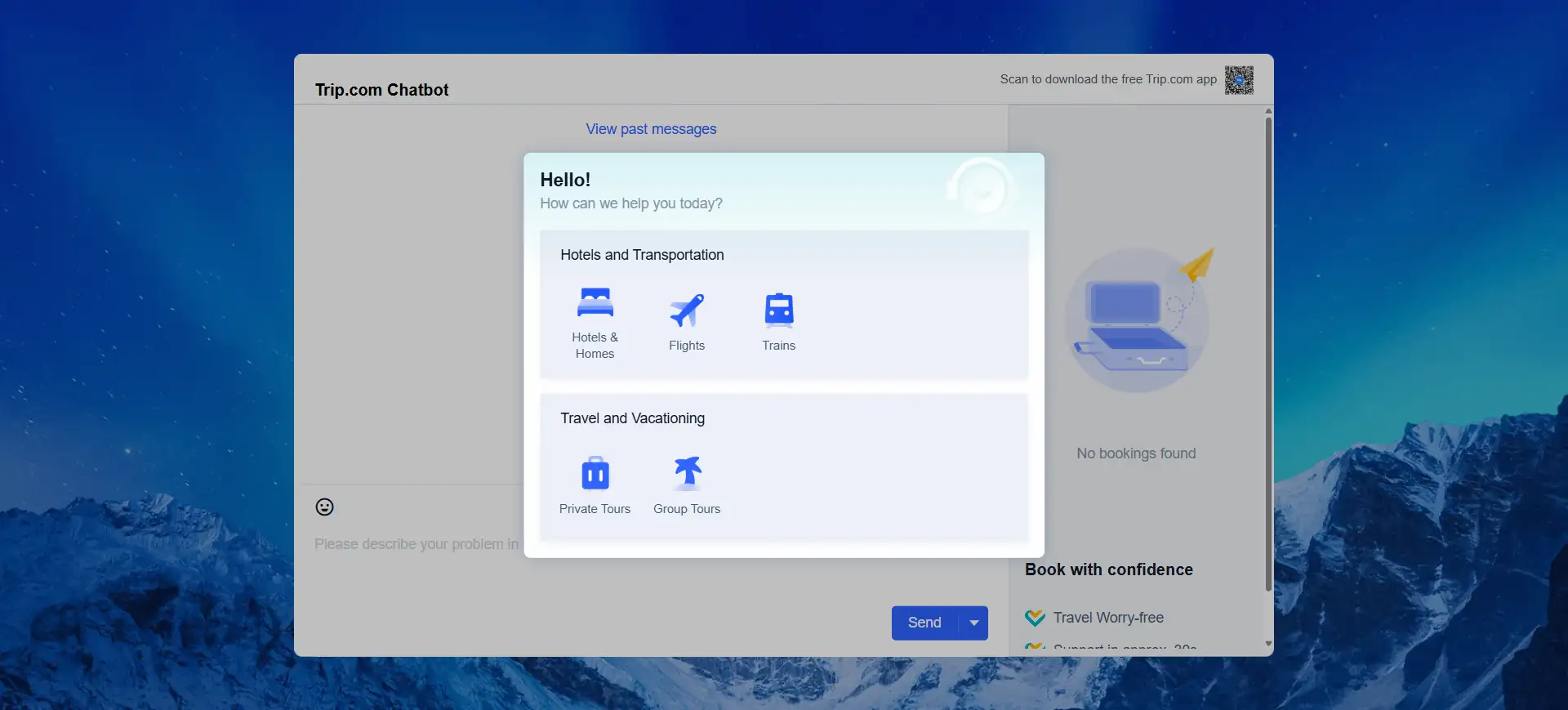
How to Find Trip.com Customer Service on Trip.com Website

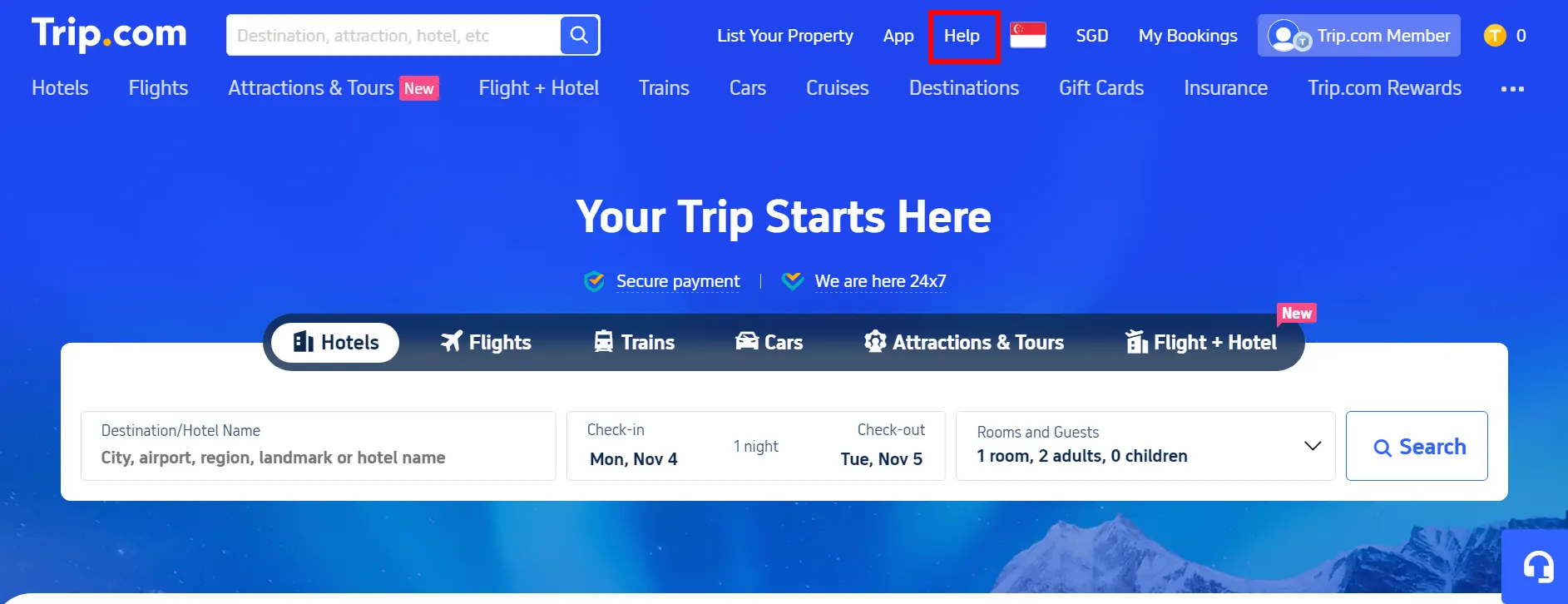
Step 1: Tap "Help" at the Top of the Trip.com website

  • Visit the Trip.com website and click on "Help" at the top right to the detail page.

Step 1: Tap "Help" at the Top of the Trip.com website

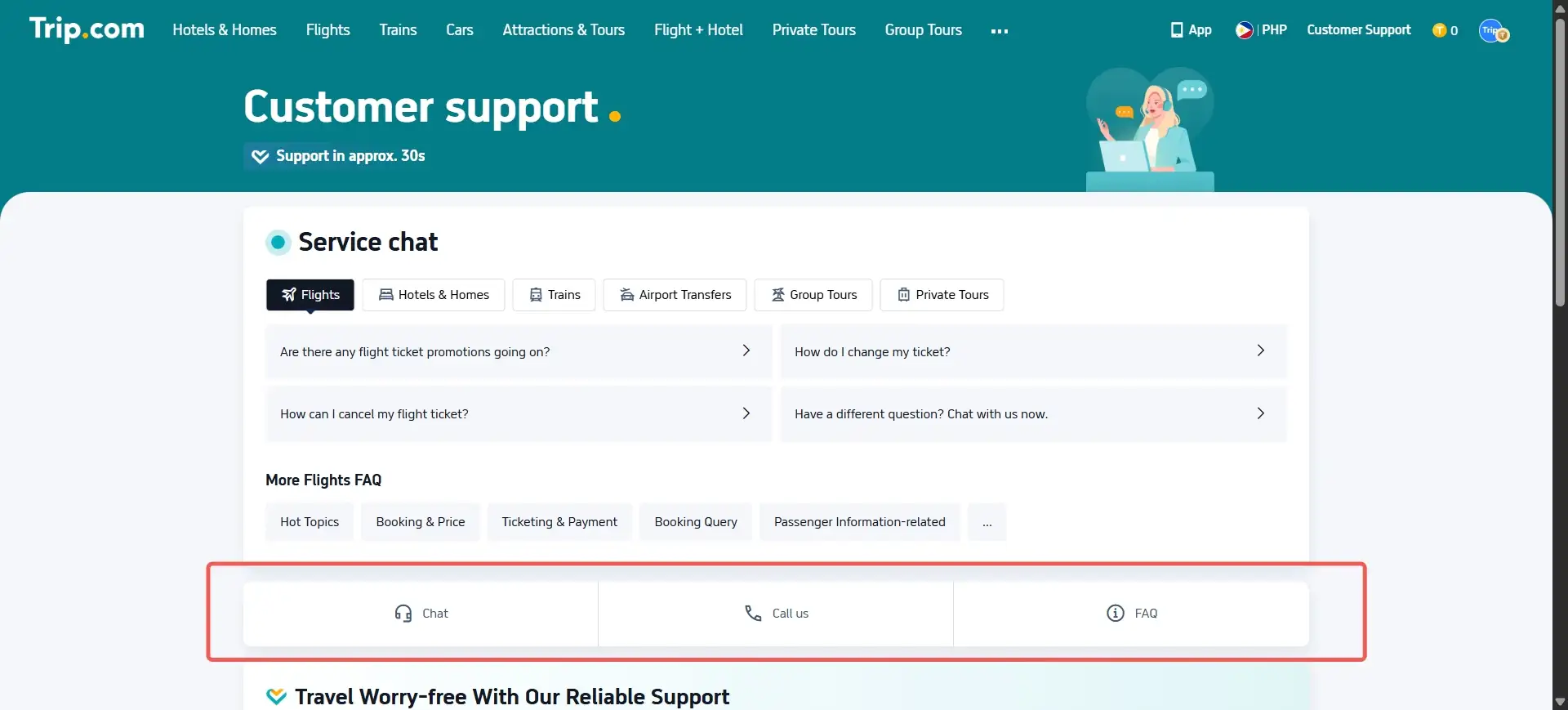
Step 2: Tap "Customer Support" at the Top of the Trip.com website

Step 2: Select "Call Us" on Customer Support Page

  • Click “Call Us” to open the detailed page about the call service.
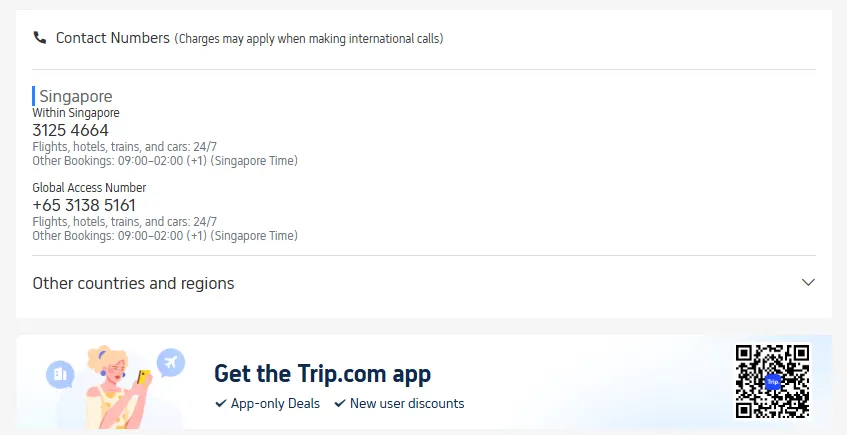
    Number Hotline Trip.com SG

Step 3: Select "Chat" on Customer Support Page

  • Click “Chat” to open the detailed page about the chat service.
  • Trip.com chat service is for non-urgent issues and connects you to a human agent 24/7.
Step 3: Select "Chat" on Customer Support Page

Changing Your Email Address on Trip.com Is Easy

Changing your email address on Trip.com is easy.

Updating your email address on Trip.com is simple and can be done directly through the app. Whether you've entered an incorrect email during registration or stopped receiving booking notifications, you can follow a few easy steps to update your account details.

Looking for great deals on overseas travel? Trip.com, trusted by over 400 million members worldwide, offers 24/7 Japanese-language customer support to help with account-related issues, including email address changes. Book your next trip with Trip.com and enjoy a more convenient travel experience!

FAQ: Changing Your Email Address on Trip.com

Disclaimer: This article has been provided by an individual contributor or third party platform. If there is any discrepancy regarding the copyright, please contact us directly and we will delete the content immediately.
Alex

Alex

Asia Explorer

View profile

Hi, I’m Alex! I started travelling as a way to take a break from my busy work life, but over the years, it became my passion. From weekend getaways around Asia to longer journeys exploring different cities, I love researching hidden gems, trying local food, and creating practical travel plans. Through my travel guides, I hope to share tips and useful recommendations to help fellow travellers plan meaningful adventures.

95 articles
Asia Travel Travel Planning Hidden Gems
> >
Change Email Address on Trip.com